
Purchase Invoice Tutorial
Last modified on 2025-11-06
Add purchase Invoice
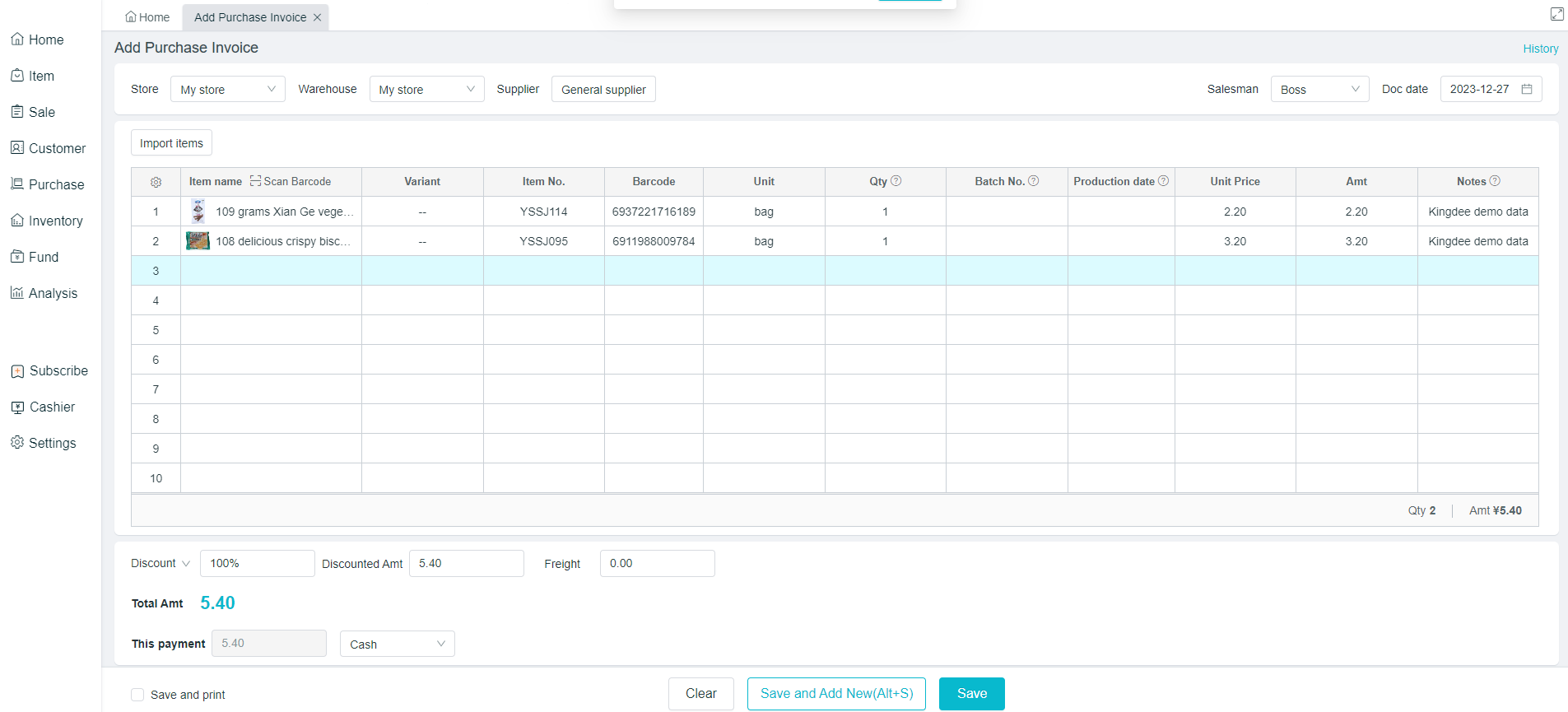
Path: [Purchase] - [Purchase] - [Add Purchase Invoice]
- Select the supplier name, and click on "+" to directly add suppliers
- Select the purchased products, which can be added through scanning the code, or clicking on the blank space of the product name with the mouse
- Add the quantity and purchase price of each product
- Click on "Save" to save the document; click on "Save and Add" to continue issuing the purchase invoice.
View, Copy and Cancellation of Purchase Invoice
Path: [Purchase] - [Purchase]
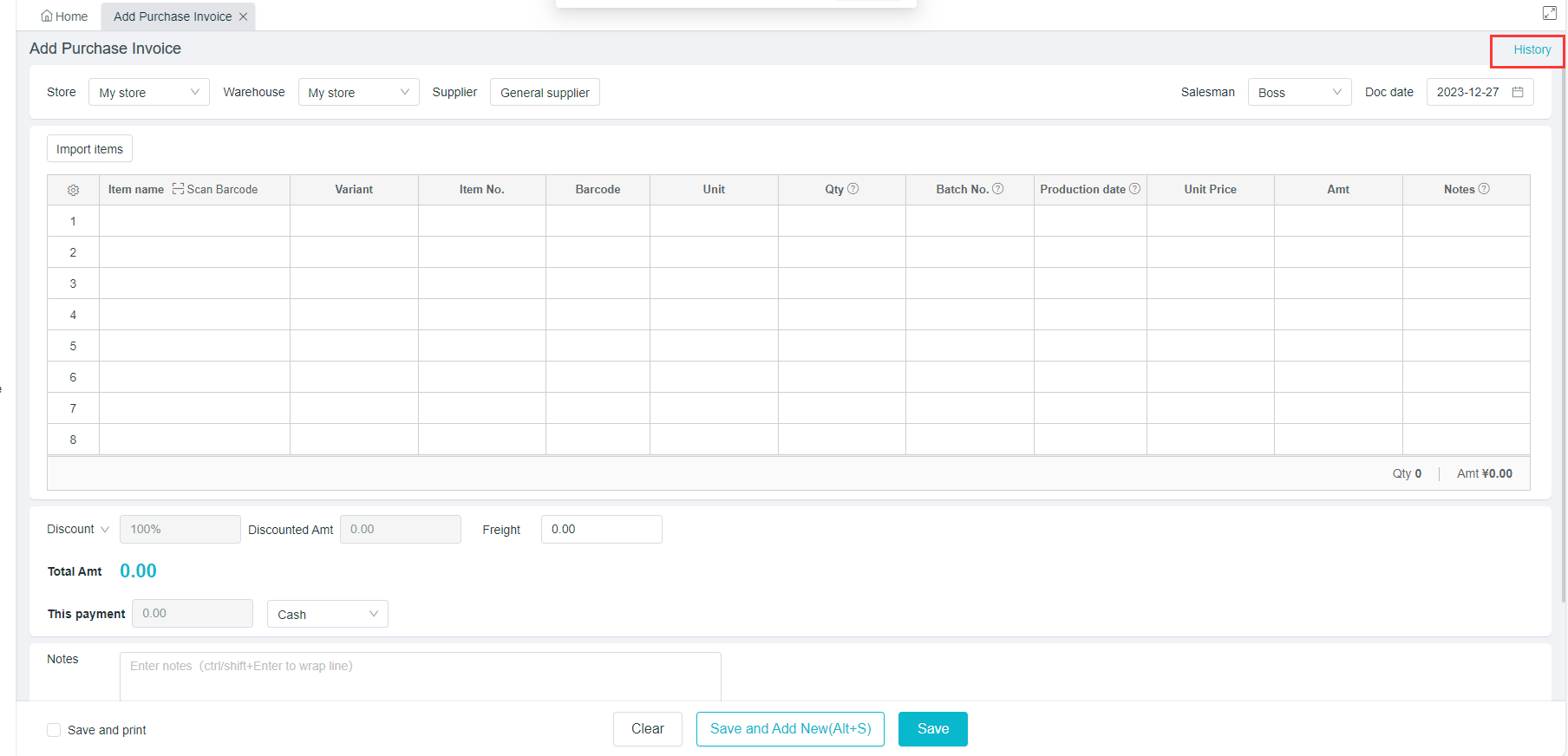
- Click on "View Historical Documents” at the top right corner to find the documents to be deleted
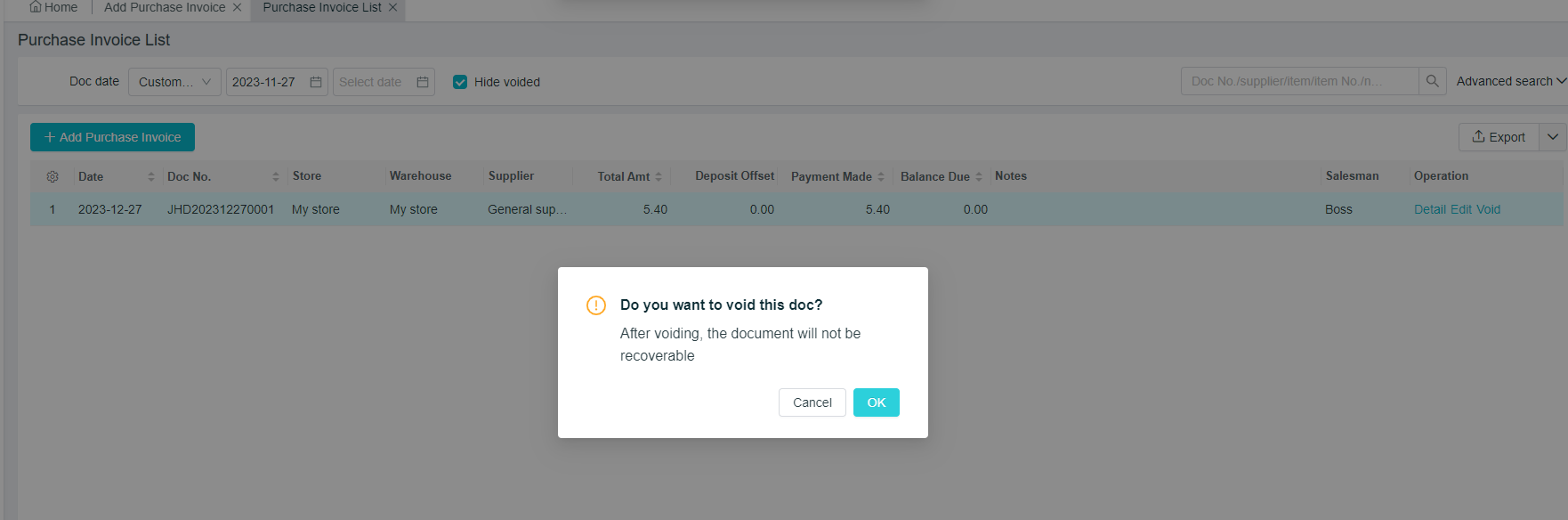
- Three buttons on the right side of the corresponding documents correspond to three operations: [Detail], [Edit] and [Void]

[Detail]: Click to view the details of purchase Invoice.
[Edit]: You can copy an identical purchase invoice , and if the product purchased this time is similar with that purchased last time, this method can be used to quickly add new purchase invoice .
[Void]: It is important to note that the system-preset purchase order of customers can only be canceled together with the associated payment bill, and after the confirmation, just click on "Go to Cancel".