

How to add item storage locations
Item storage location information can be managed through the "Item Attributes" function.
Add Storage Location Attribute
Path: [Item] → [Item Attributes] → [Add Product Attribute]
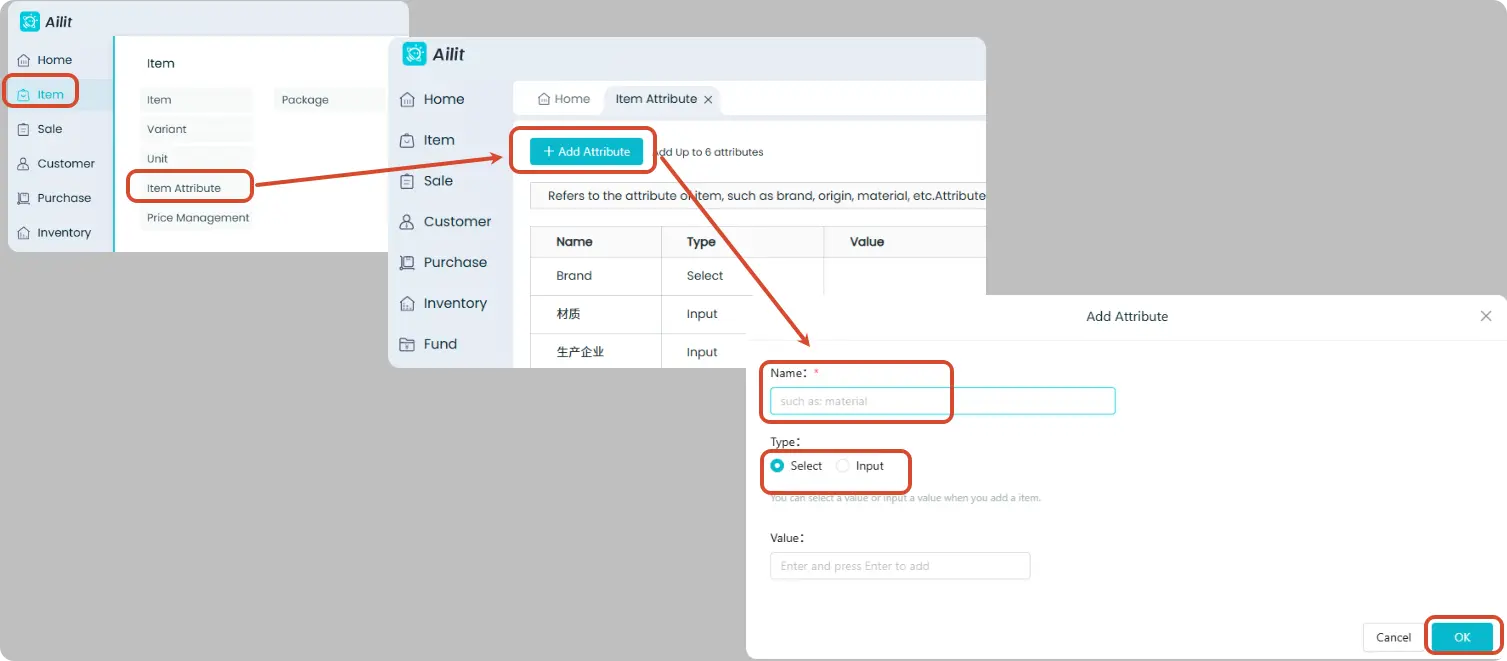
- Fill in attribute information:
- Attribute Type:
- Selection Type: Suitable for fixed storage locations. Options can be created in advance or newly added while editing products.
- Input Type: Suitable when each product has a distinct storage location; manually enter the location when editing products.
If you need to fill in multiple storage locations (e.g. A-1; B-2), it is recommended to select the Input Type and separate them with a semicolon
;.
Click Save to finish.
Fill in product storage locations
Path: [Item] → [Item] → Add or edit Item → Fill in storage location information → Save
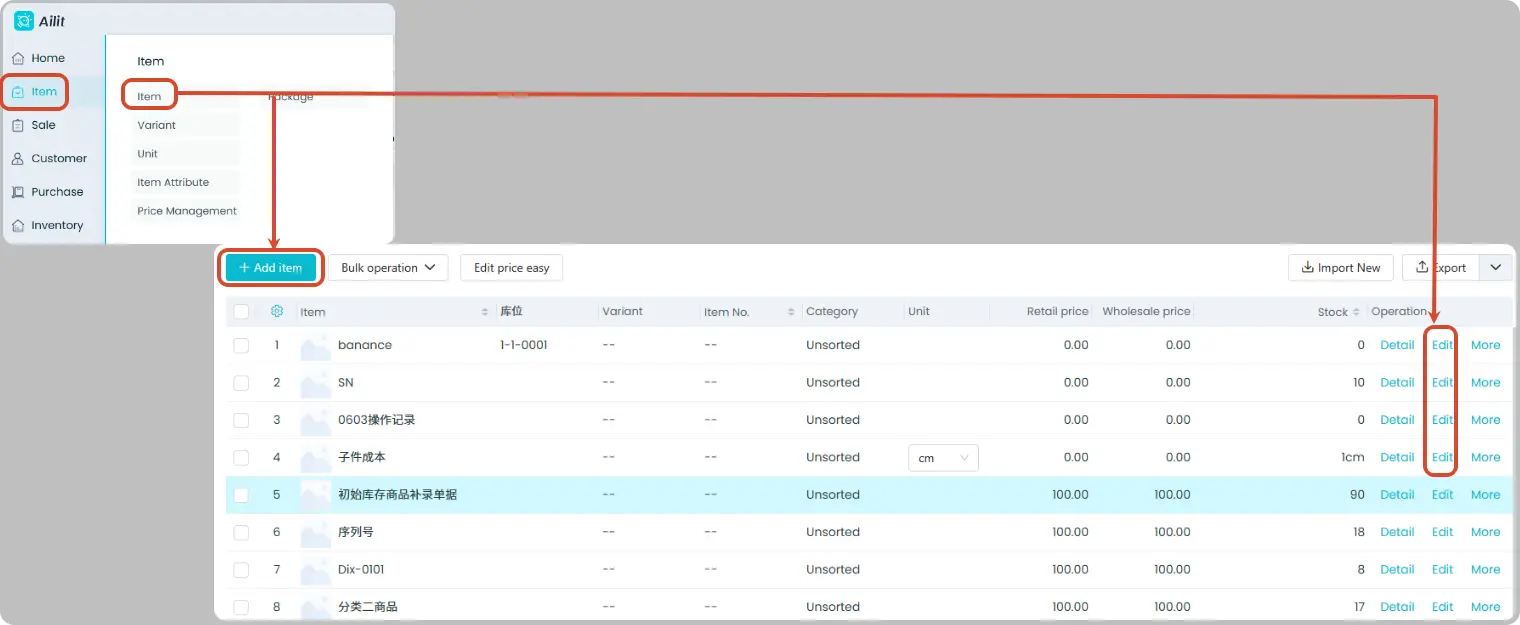
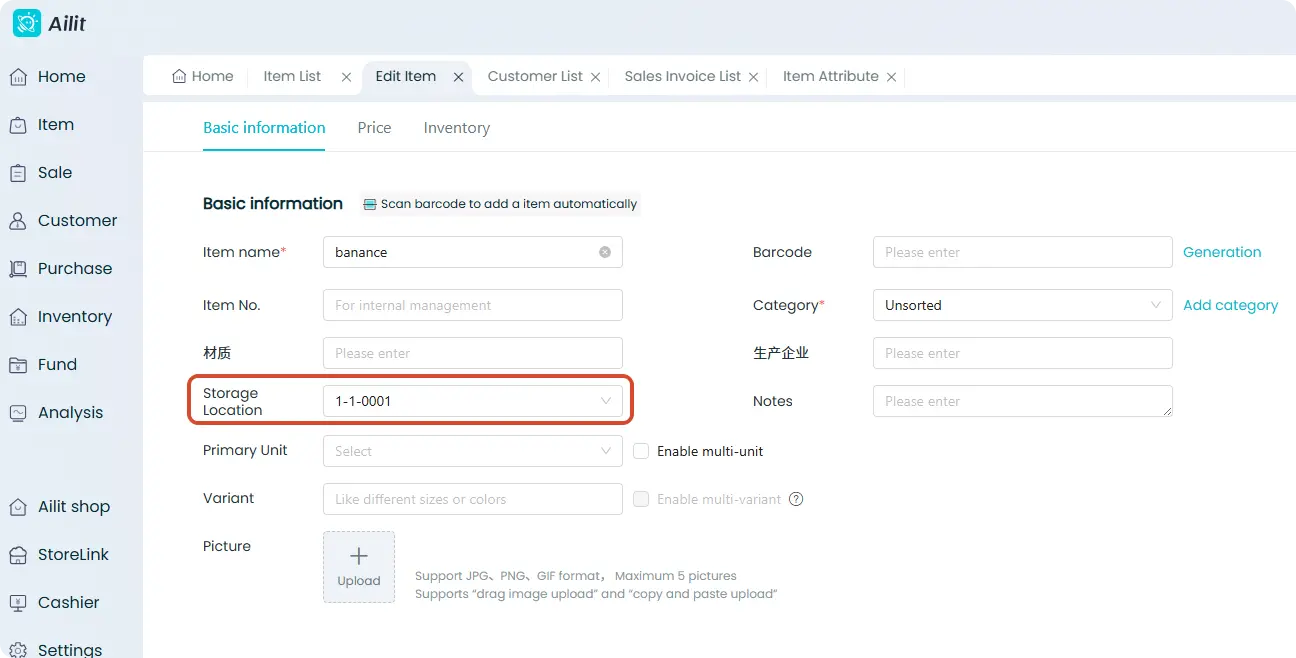
View storage locations in the product list
Path: [Item] → [Item] → Click the ⚙️ button in the upper left corner Add the "Storage Location" field, drag to adjust the column order, and storage location information will be displayed in the list after saving.
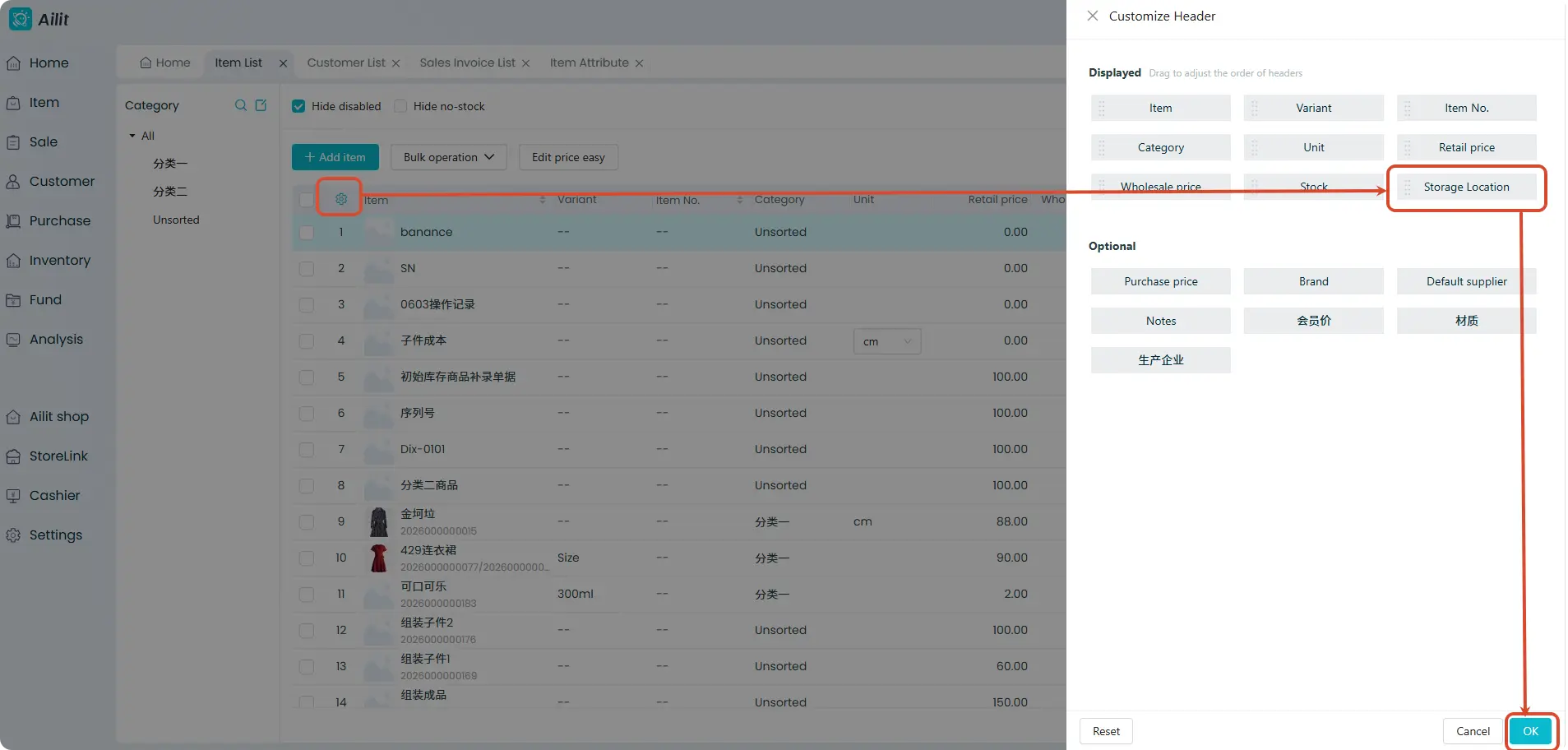
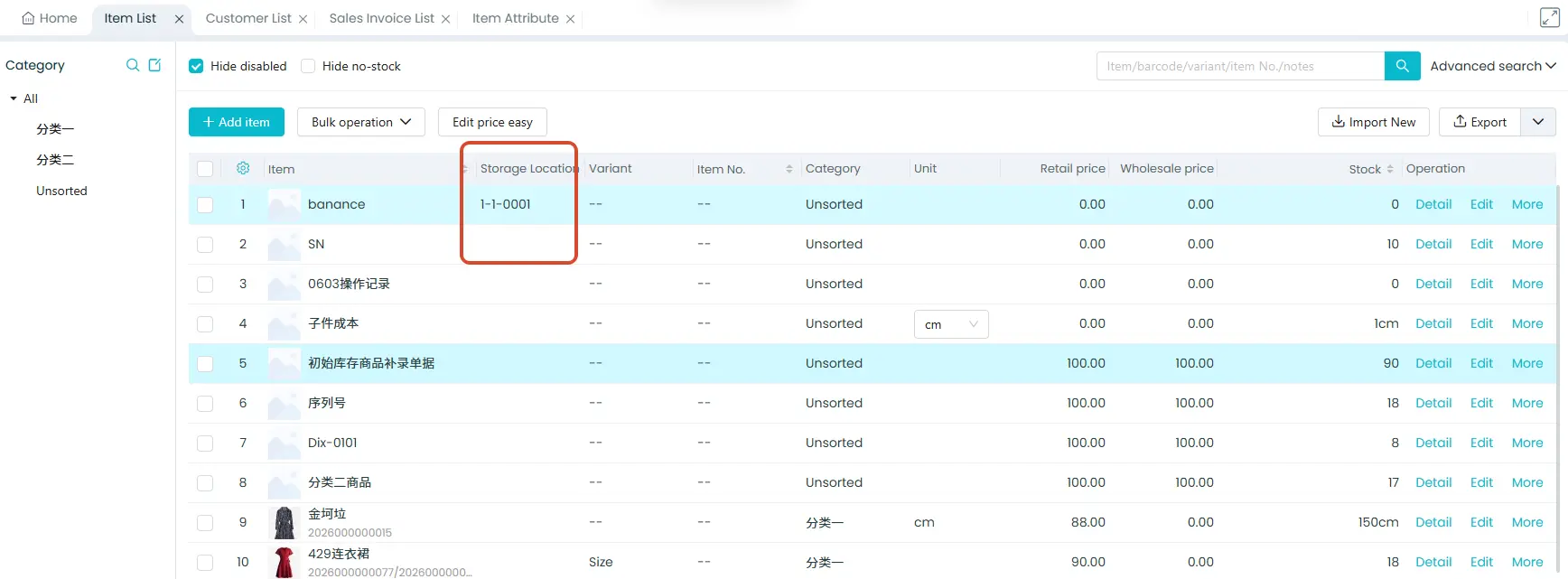
💡 Draw inferences from one instance: You can also manage custom information such as product brand, origin and material using the same method.
Display storage location when creating orders
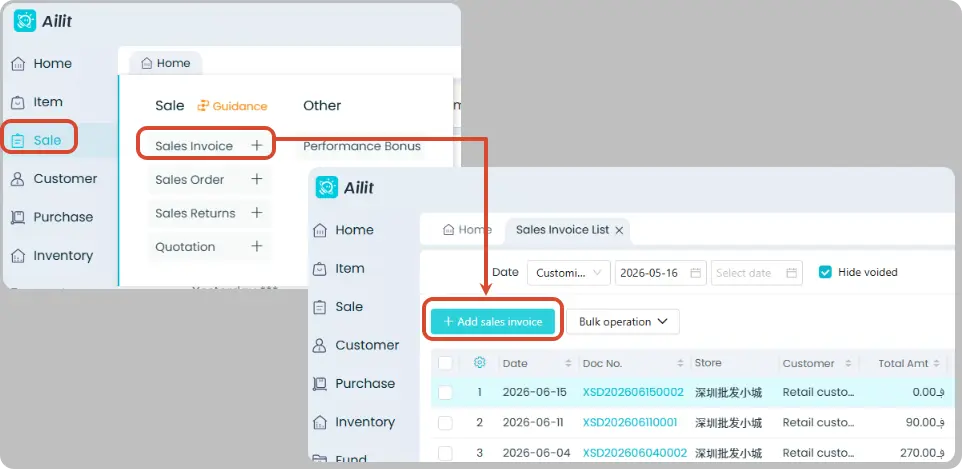
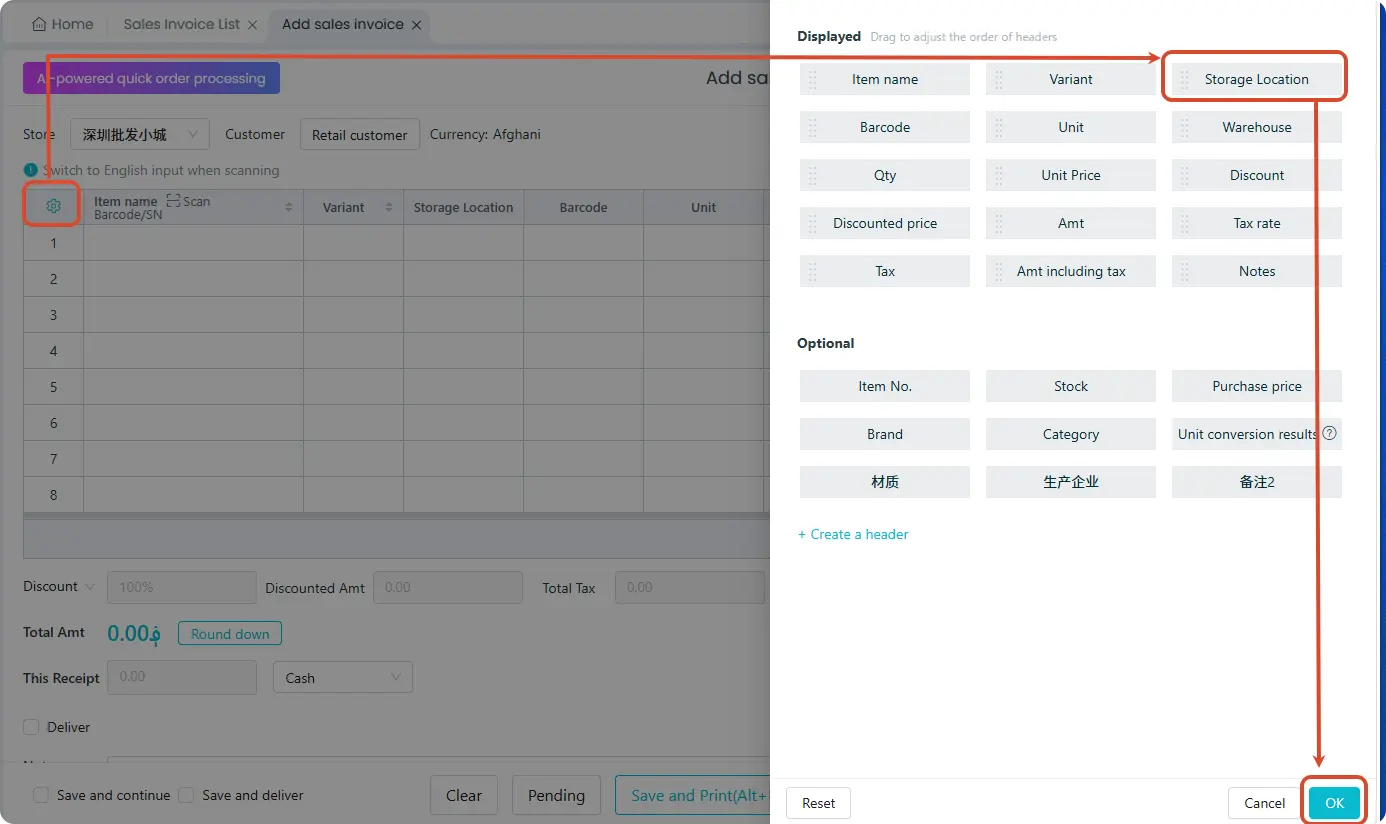
Path: [Sales] → [Sales invoice] → [Add Sales Invoice] → Click the ⚙️ button in the upper left corner → add storage location for display
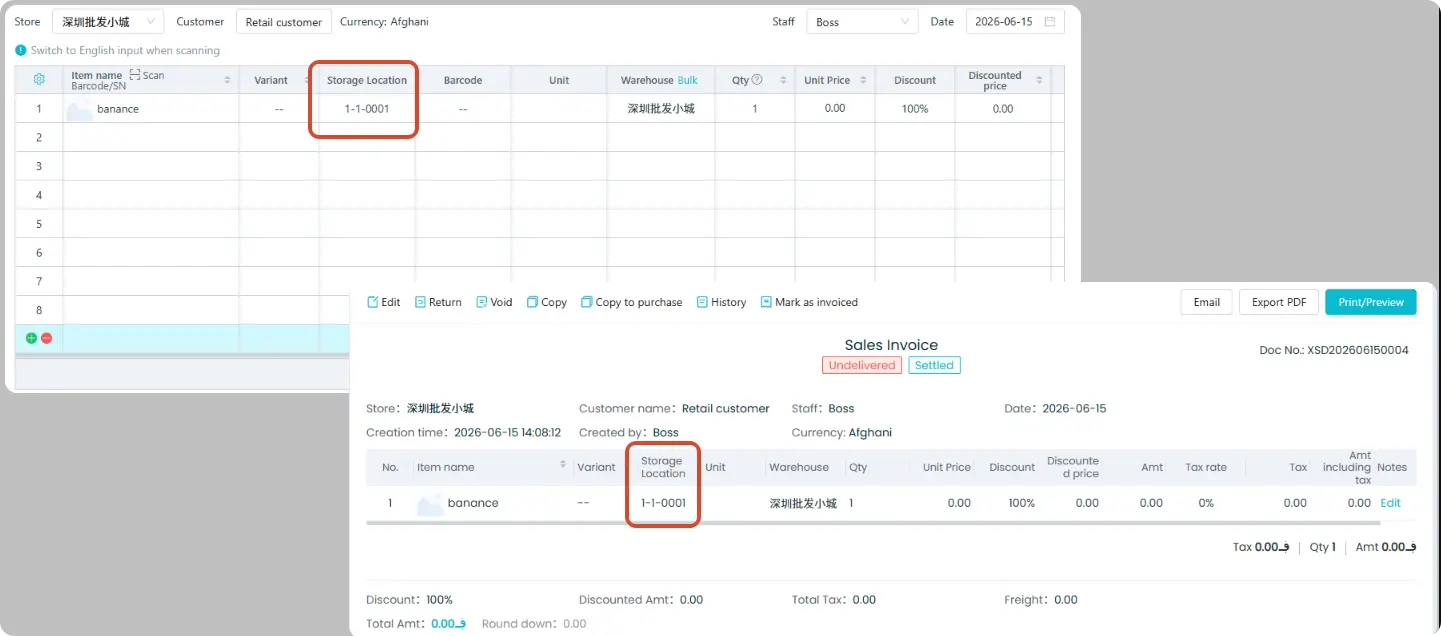
Staff can pick goods according to the product storage location information on the delivery order.