How to set up jewelry label templates
The jewelry industry can choose exclusive label templates, supporting smaller font sizes, font rotation, print orientation, and other settings.
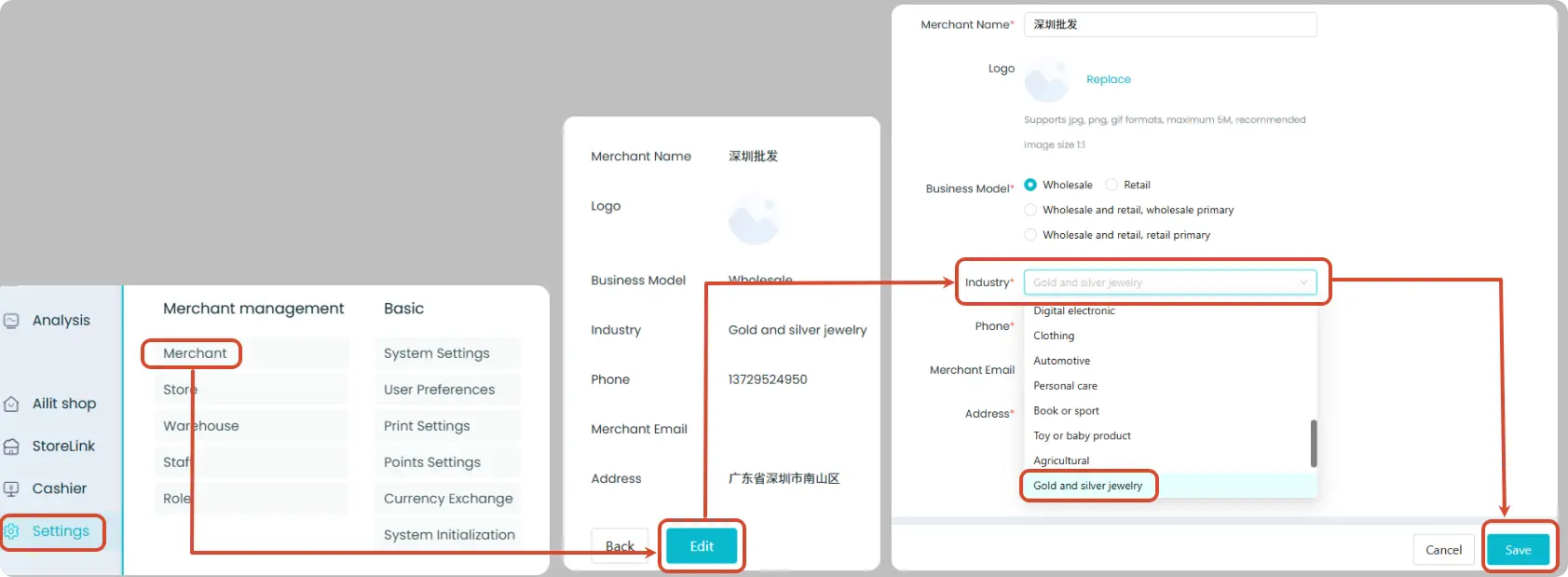
Set the Industry
Operation Path: [Settings] → [Merchant] → [Edit] → Select “Gold and silver jewelry” as the industry type → Save
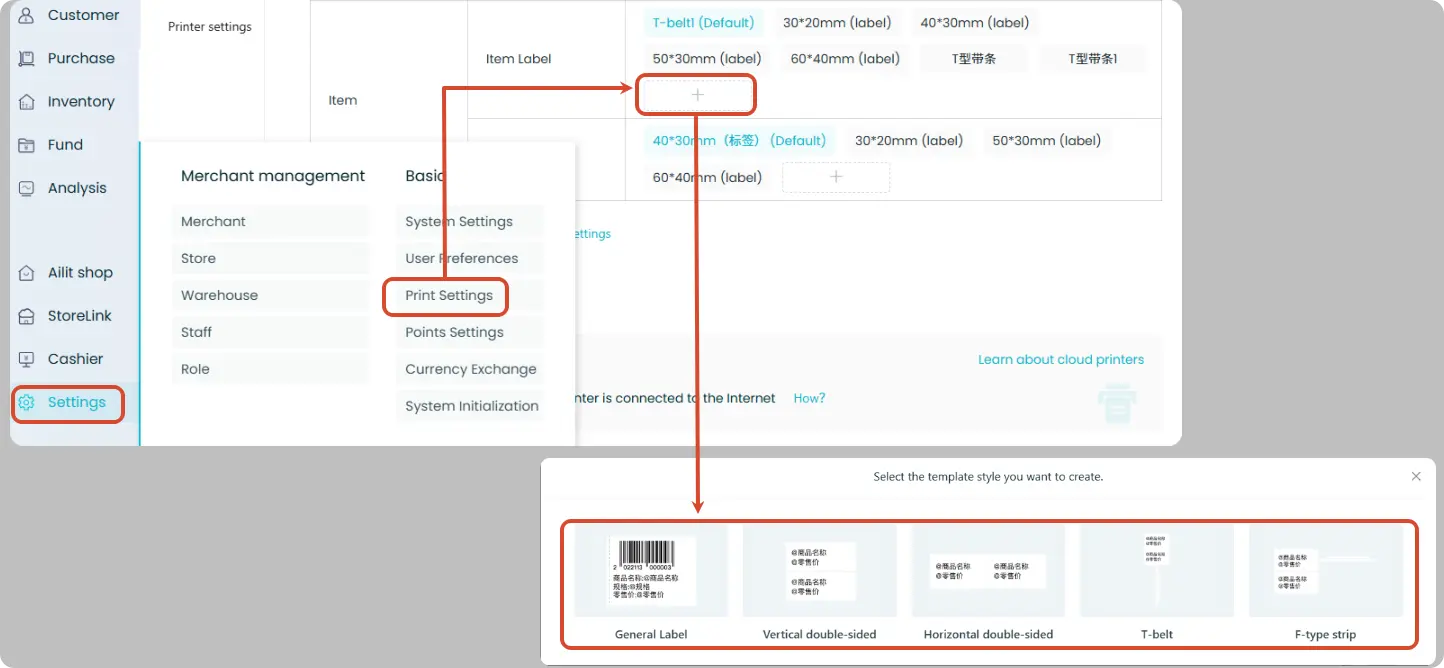
Add a New Product Label Template
Operation Path: [Settings] → [Print Settings] → Click the “+” in the “Item Label” row → Select a template style
Supported template styles:
- General Label
- Vertical double-Sided
- Horizontal double-Sided
- T‑belt
- F‑tyoe strip
If you selected the “Gold and silver jewelry” industry during registration, the system will automatically preset four exclusive jewelry label templates.
Edit the Template
After entering the template editor, jewelry labels support the following special settings:
Font Rotation: Click the component → On the right, under “Style” click the rotation button
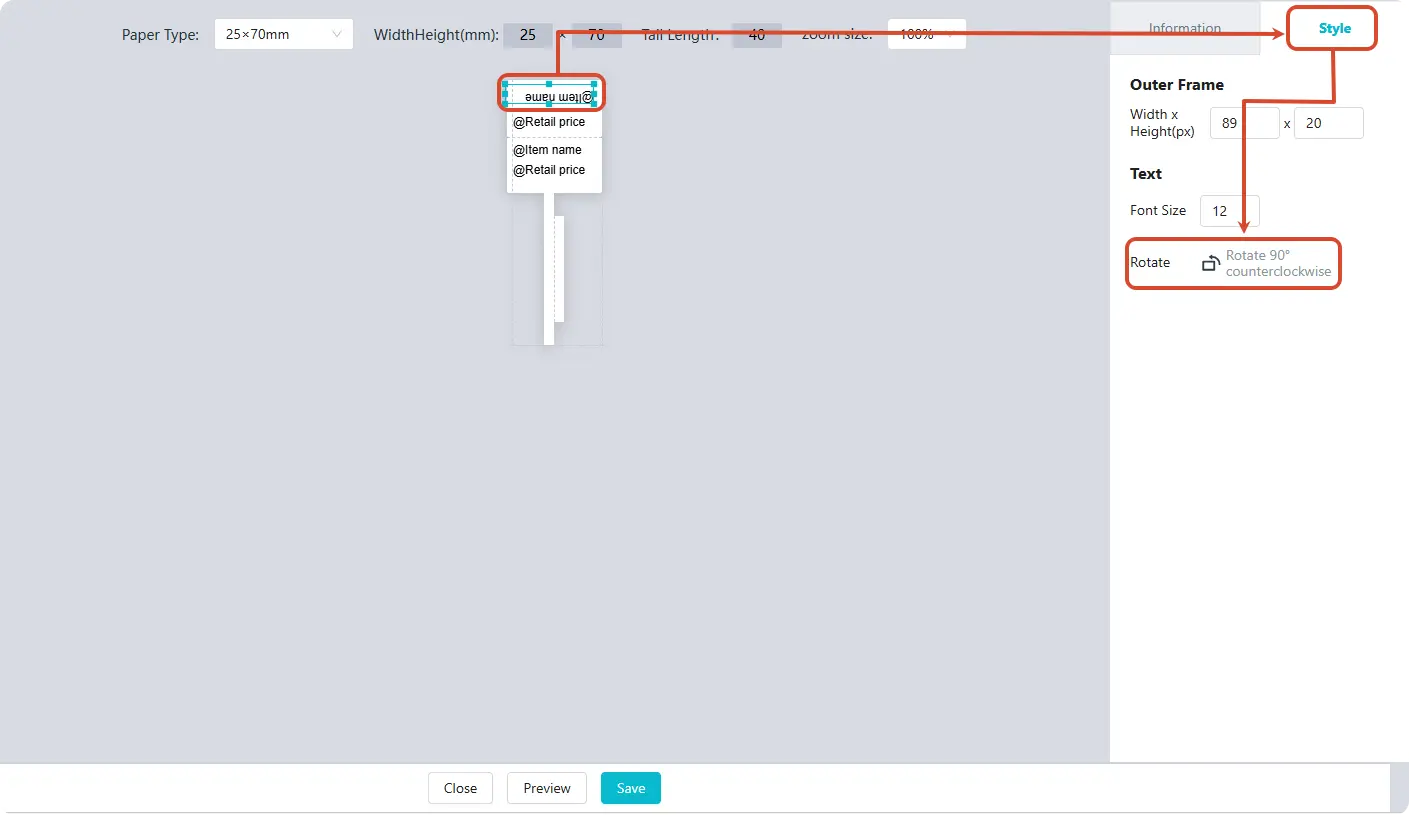
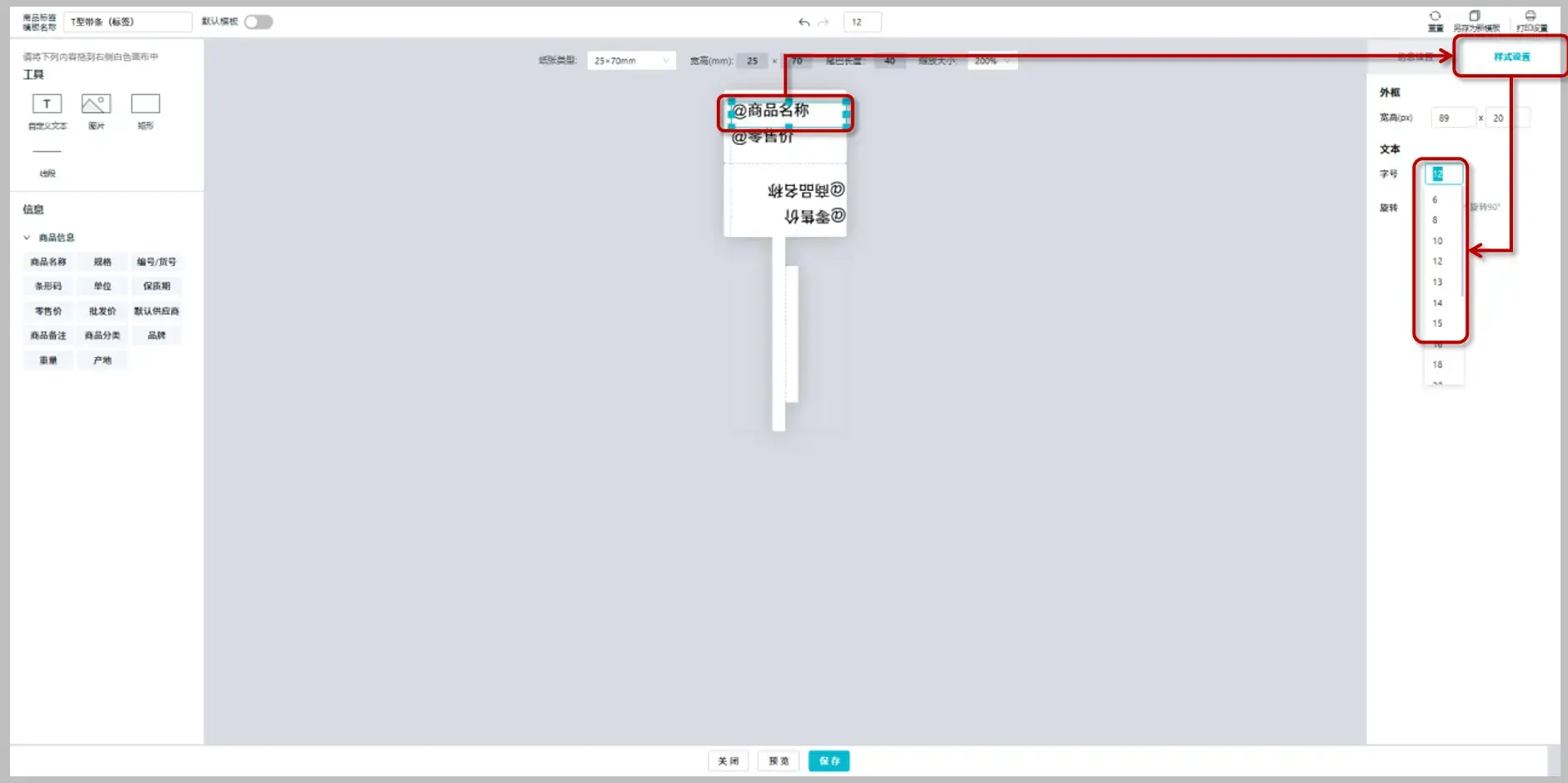
Smaller Font Size: Click the component → On the right, under “Style Settings,” select the font size; the smallest setting is 6
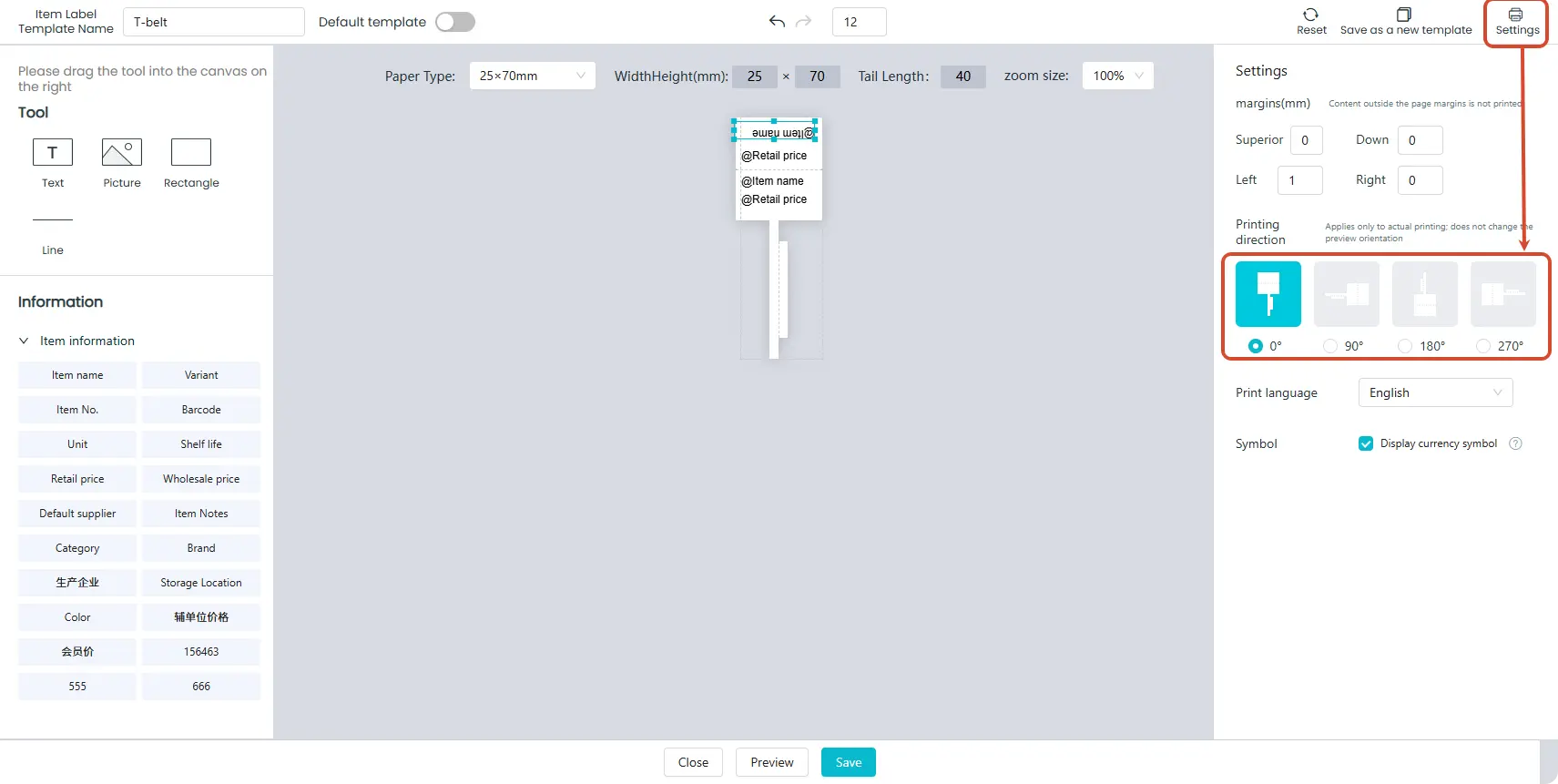
 Print Orientation (T‑Shaped/F‑Shaped Only): Click the “Settings” icon in the upper right corner → Select the print orientation
The preview always shows 0°; changing the print orientation does not alter how the preview appears.
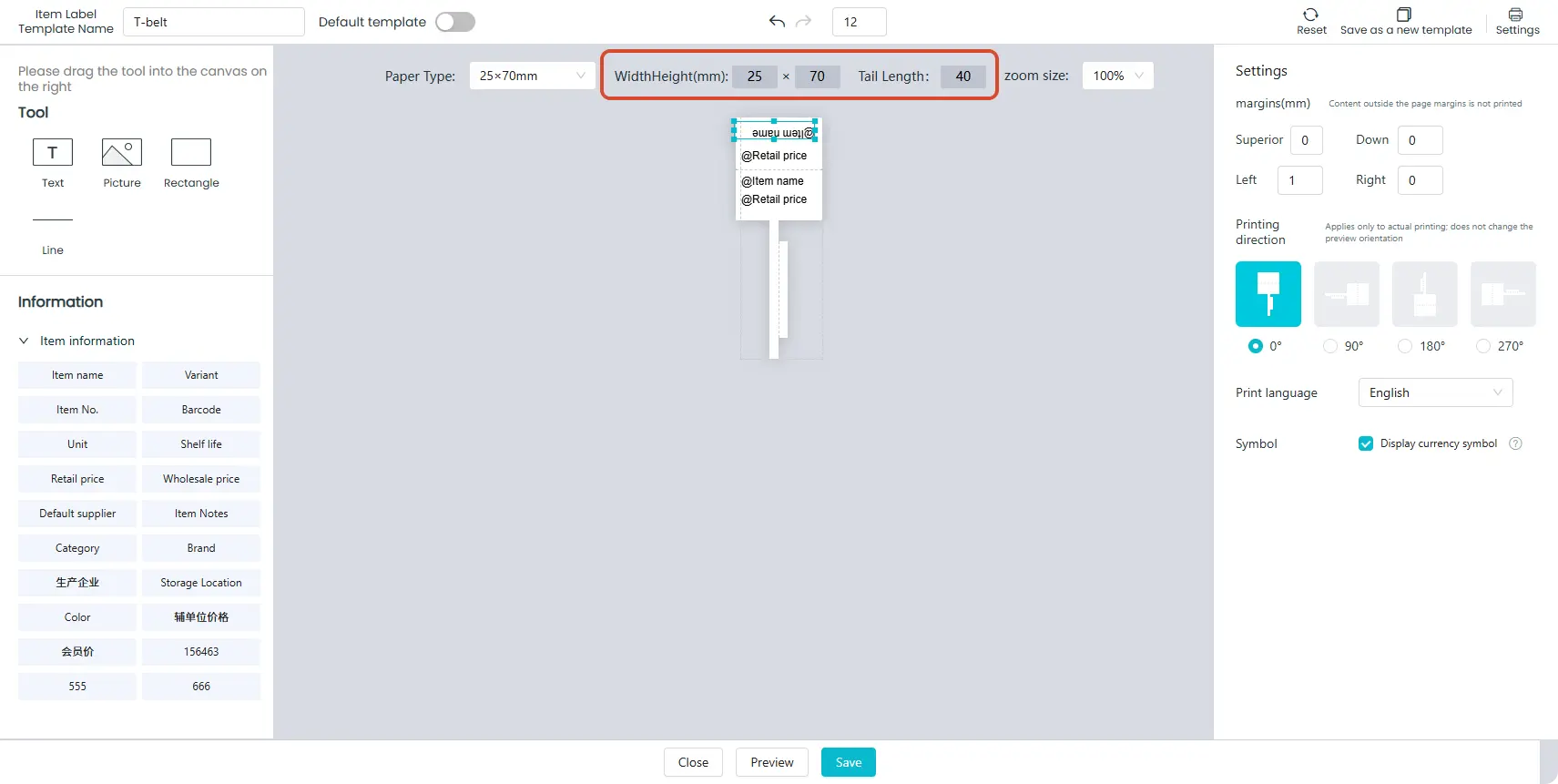
Tail Length (T‑Shaped/F‑Shaped Only): Adjust the tail length in the template editing area
After completing your settings, click “Save” at the bottom.
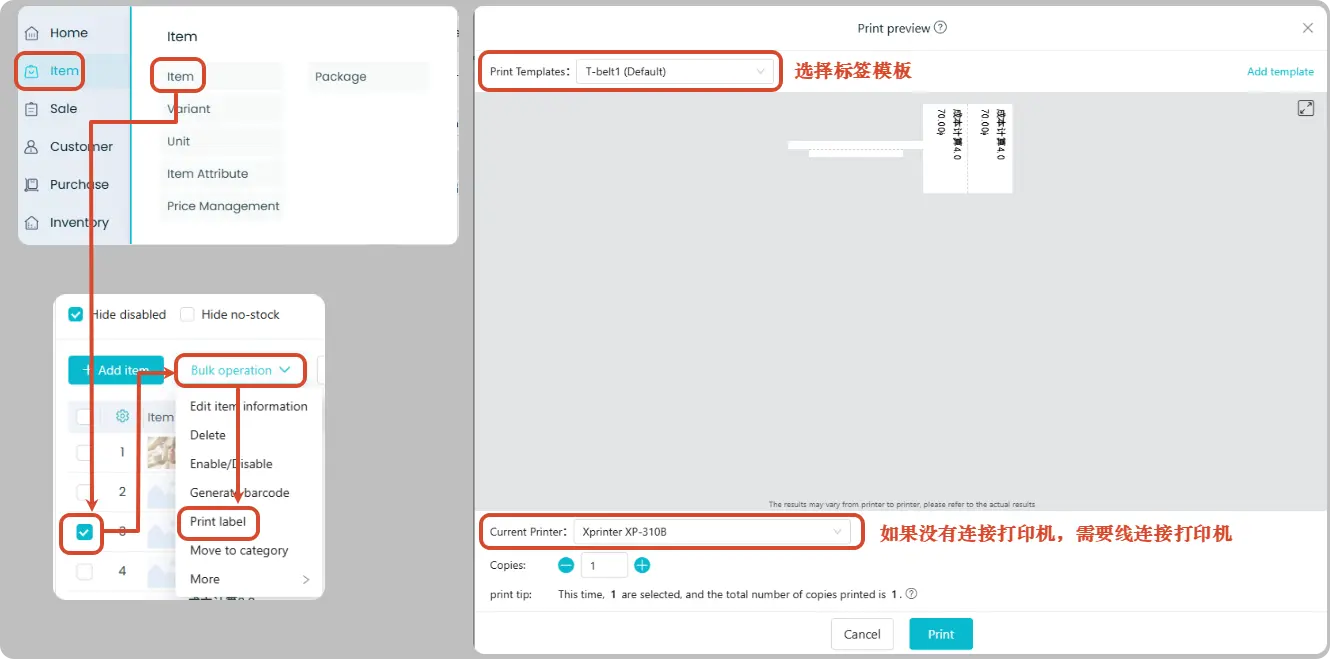
Print Labels
Operation Path: [Item] → [Item] → Check the products → [Bulk Operations] → [Print Labels] → Confirm or switch the print template → [Print]
If no printer is connected, you must first connect and select a printer.