

Printing Template Tutorial
Ailit’s custom print template has been updated. First, set up the print template to enjoy greater flexibility—customizable paper sizes and the ability to add more information, such as your store logo and QR code. Additionally, several new editing tools have been added to enhance the appearance of your documents. Let’s take a look at how to do it:
Method 1:
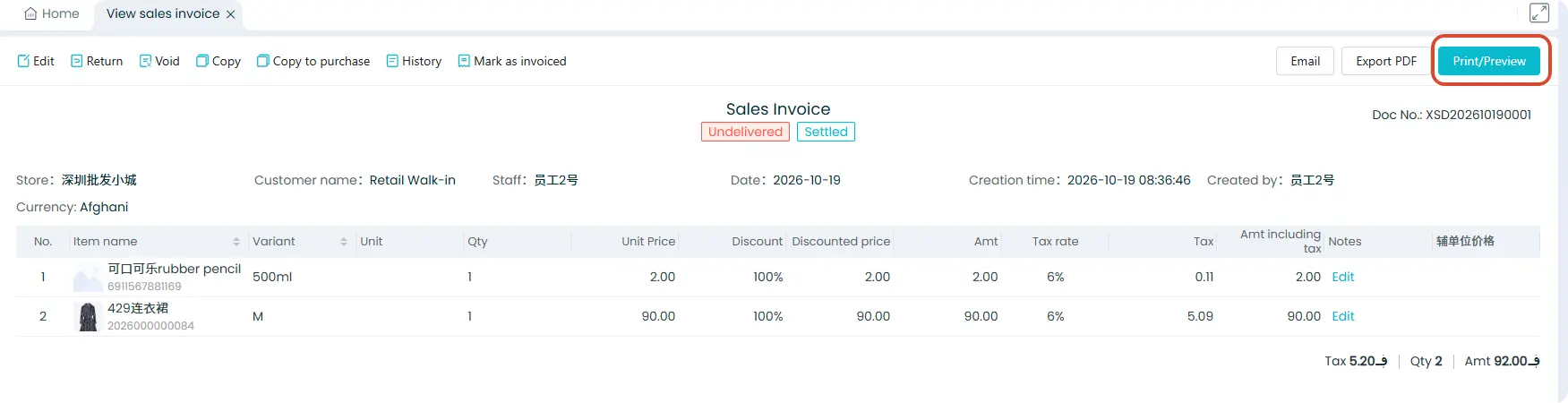
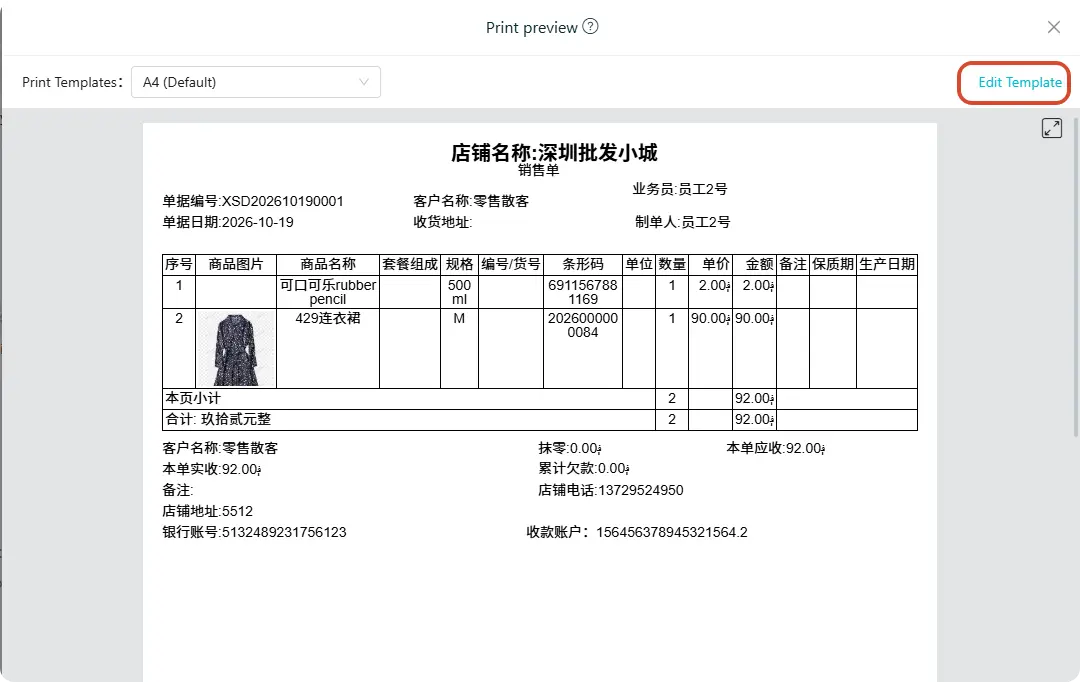
Go to the Sales invoice — [Print/Preview] — tap [Edit Template] in the upper right corner.
Method 2:
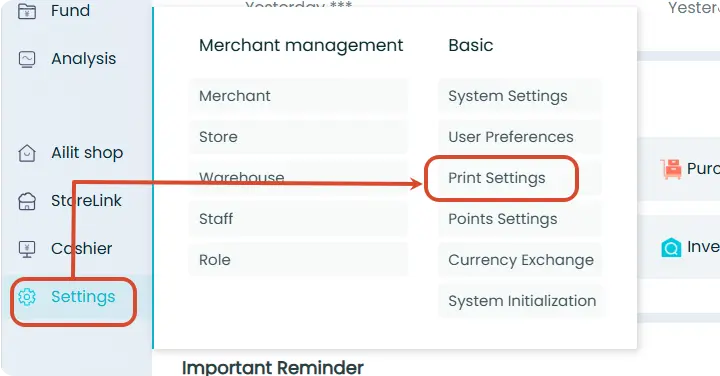
[Settings] — [Print Settings]
Currently, printing is supported for Sales Orders and Sales Invoices, Purchase Orders and Receipts, Transfer Orders, Payment and Collection Vouchers, as well as Product Labels. Different documents support different print templates, so you can choose and configure the appropriate template based on your specific business needs.
Below, we’ll use the “Thirds” template for Sales Orders as an example. Click on the template to access detailed settings:
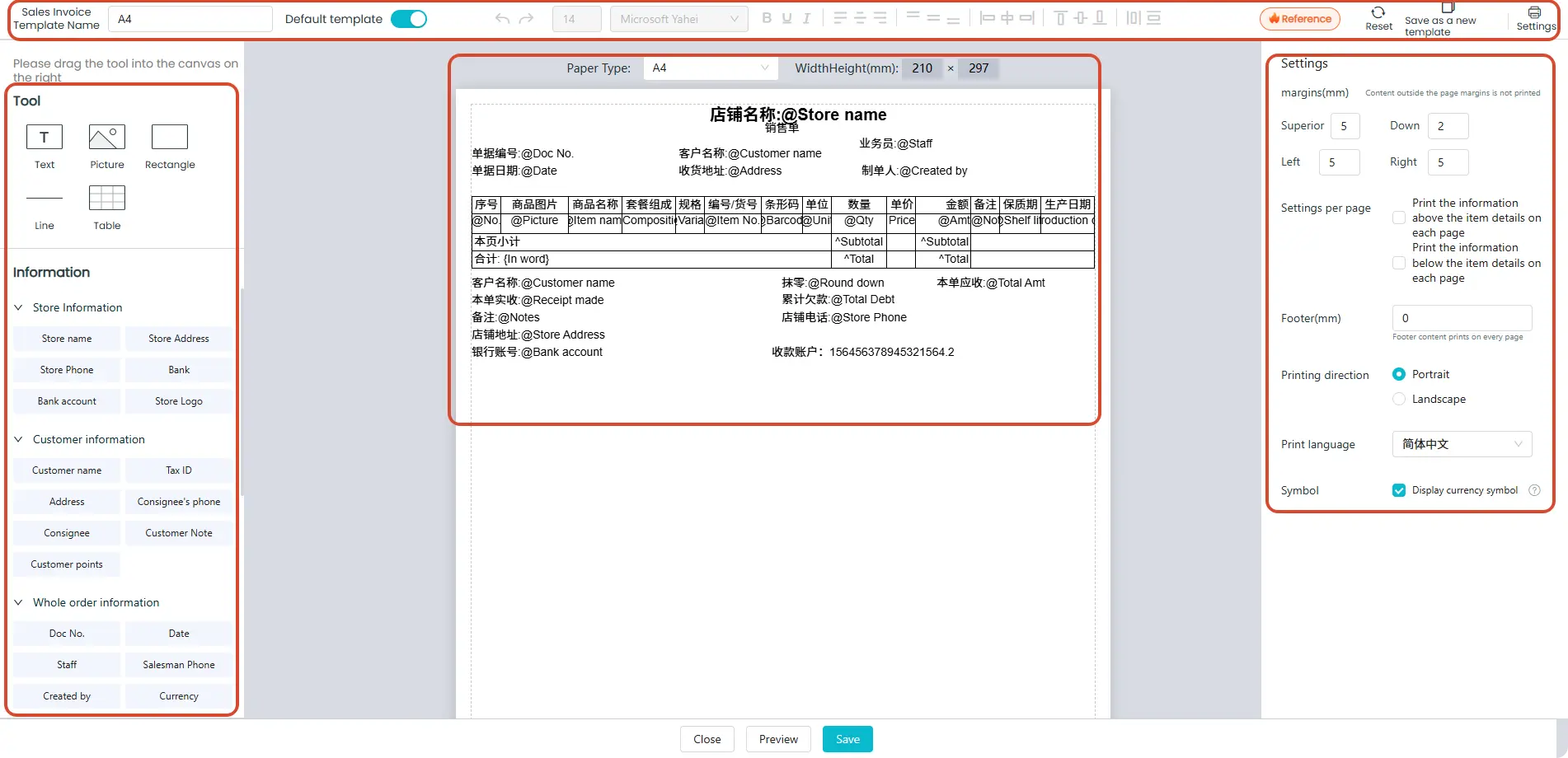
In the print template editor, you’ll see the top toolbar, the left-side tool panel, the central template editing area, and the settings panel on the right.
The template you’re currently viewing is the default one, but you can customize it according to your business requirements.
How to use the toolbar:
1. Operations: Click and drag to select, then move tools or information to any position on the canvas and arrange them as needed.
2. Tools: Customize text, images, rectangles, and lines—choose the features you need.
Custom Text: Enter custom text to add any special notes directly into the template.
Images: Upload images to include your company logo, payment QR codes, or other visuals.
Rectangles: Add borders of various styles to frame elements.
Lines: Adjust length and type to create dividers that enhance the template’s aesthetics.
3. Information: Pre-set fields provided by the system; the available fields vary depending on the document type.
How to use the template editing area:
1. Select an element with a single click, and the settings panel on the right will appear—this allows you to adjust individual elements.
2. Each tool or piece of information has unique properties, and the settings panel lets you fine-tune each one separately.
(1) Information Settings: Configure text content, including the name and value; some numeric values can be displayed in uppercase Chinese characters.
(2) Style Settings: Edit border styles, dimensions, font style, font size, alignment, and more.
How to use the settings panel:
1. Select an element with a single click, and the settings panel on the right will appear—this allows you to adjust individual elements.
2. Each tool or piece of information has unique properties, and the settings panel lets you fine-tune each one separately.
(1) Information Settings: Configure text content, including the name and value; some numeric values can be displayed in uppercase Chinese characters.
(2) Style Settings: Edit border styles, dimensions, font style, font size, alignment, and more.
How to use the operation bar:
1. On the left: Set the template name, which will appear in the print template list.
2. In the middle: Common operations—hover over icons to see descriptions and shortcut keys, including undo/redo, text size/font/style/position, and alignment among multiple elements; supports batch editing of multiple items.
3. On the right: Print settings, visible by default when you first open the canvas, including margins, print range per page, footer, print orientation, and default template options.
(1) Content outside the margins will not be printed.
(2) The print range per page is determined by the bottom line of the table, separating the top and bottom sections.
(3) Footer content is printed on every page and can be positioned by dragging it within the canvas.
(4) Landscape and portrait orientations are only available for A4 paper.
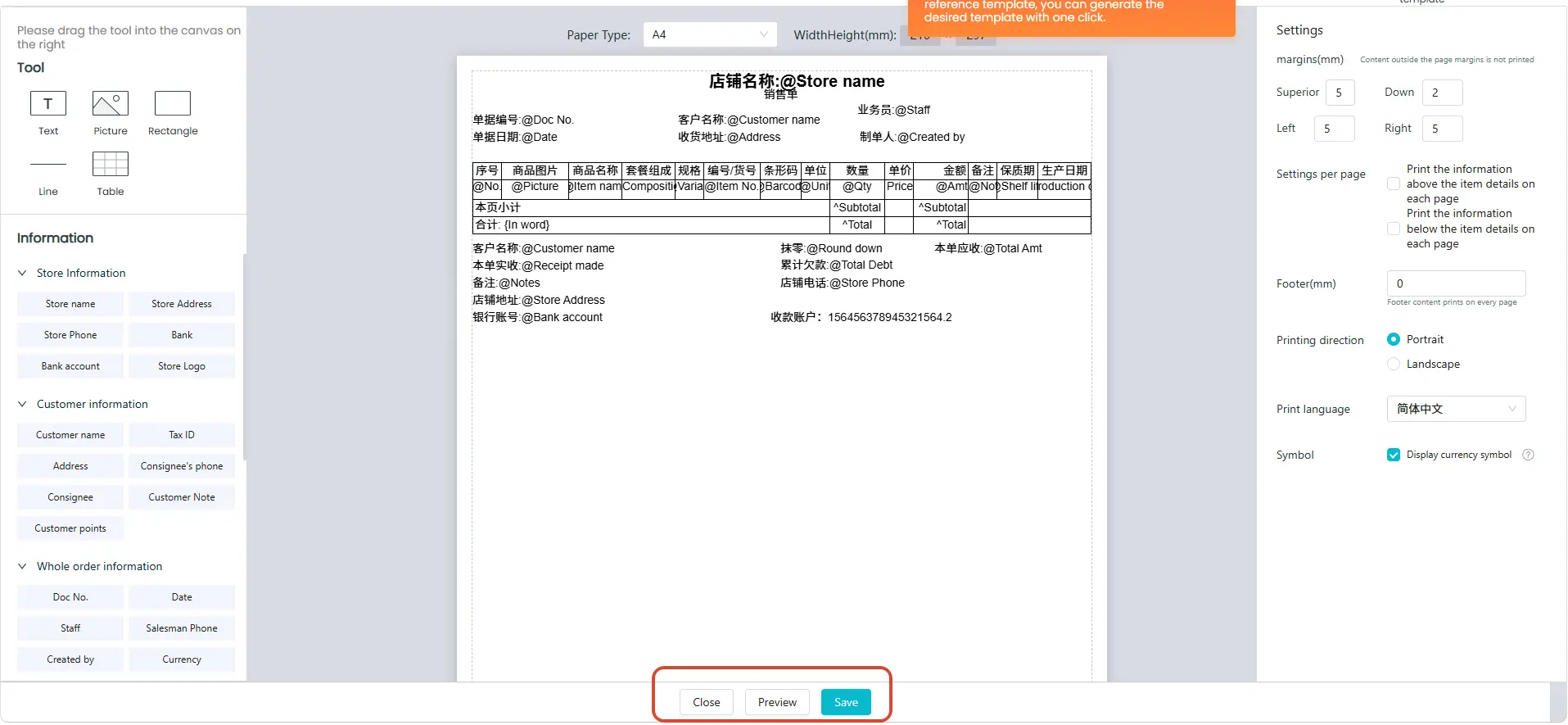 Once you’ve finished setting up, click [Preview] to view your customized print template.
Click [Reset] to restore the default template for this paper type.
After confirming everything is correct, click [Save] to save your configured print template.