

How to Handle Garbled Characters on Receipts
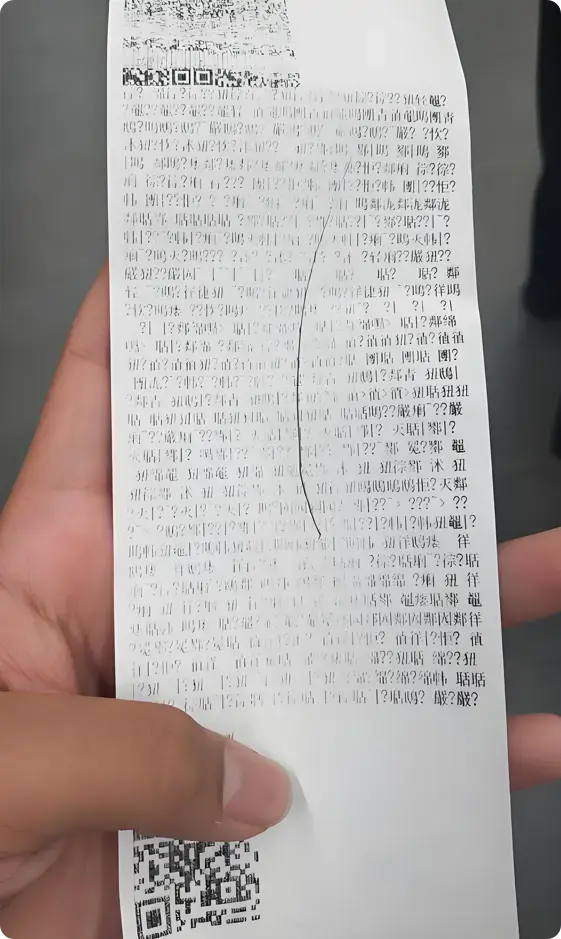
What should I do if garbled characters appear when printing receipts?
Check the Printer Mode
Receipt printers generally have two modes: continuous‑roll mode and gap‑feed mode. When printing receipts, set the printer to continuous‑roll mode; for labels, switch to gap‑feed mode. An incorrect mode can cause garbled printing, so verify that the printer is configured properly.
Some printers support only one mode, meaning they can print either receipts or labels—but not both. Printing other paper types on such a printer will result in garbled output.
Incorrect Printer Driver Installation
For printers with dual‑mode capability, drivers are usually installed separately. If you’re printing receipts, install the receipt‑specific driver; for labels, use the label driver.
Garbled Printing Due to Non‑Latin Languages
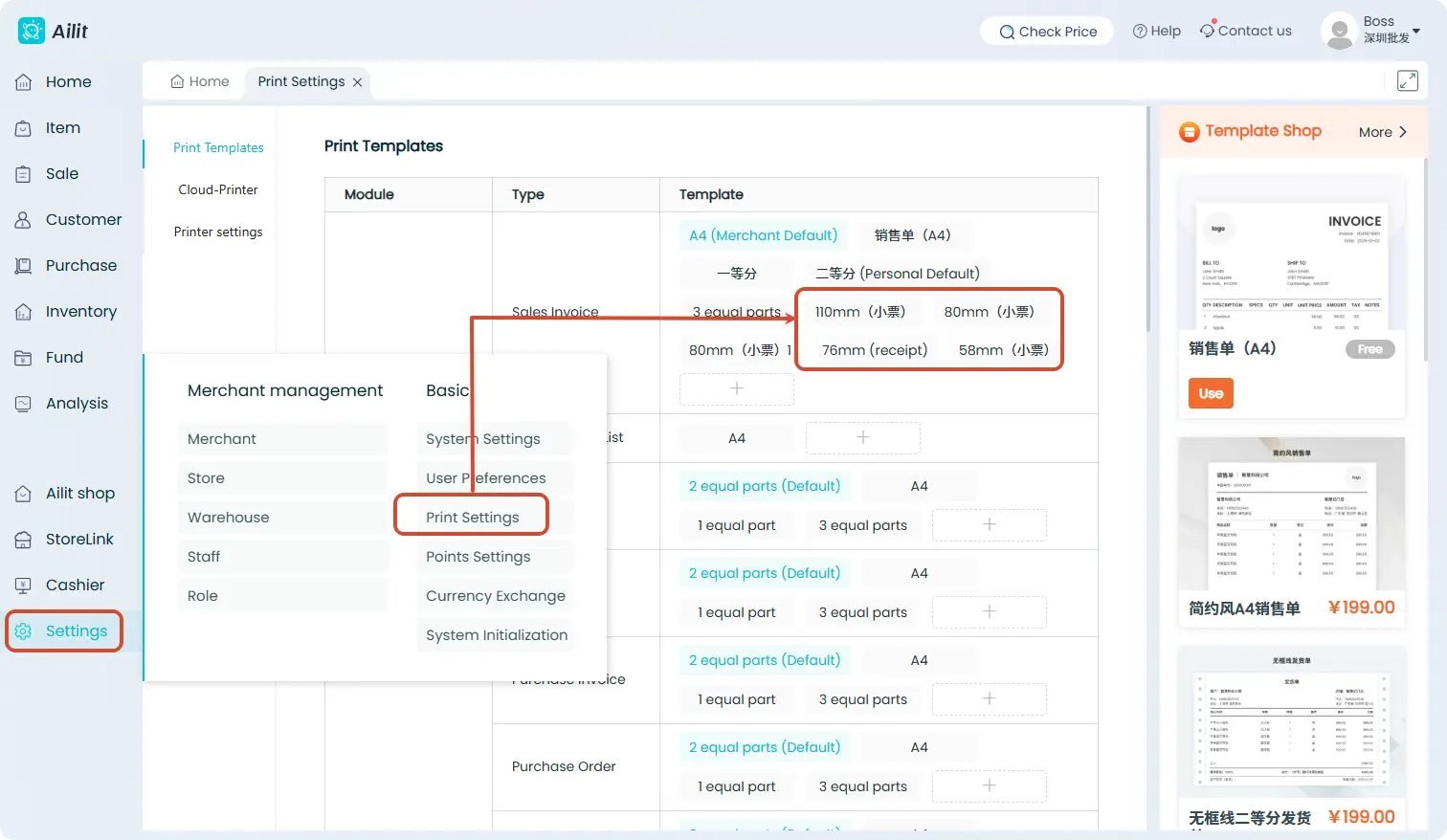
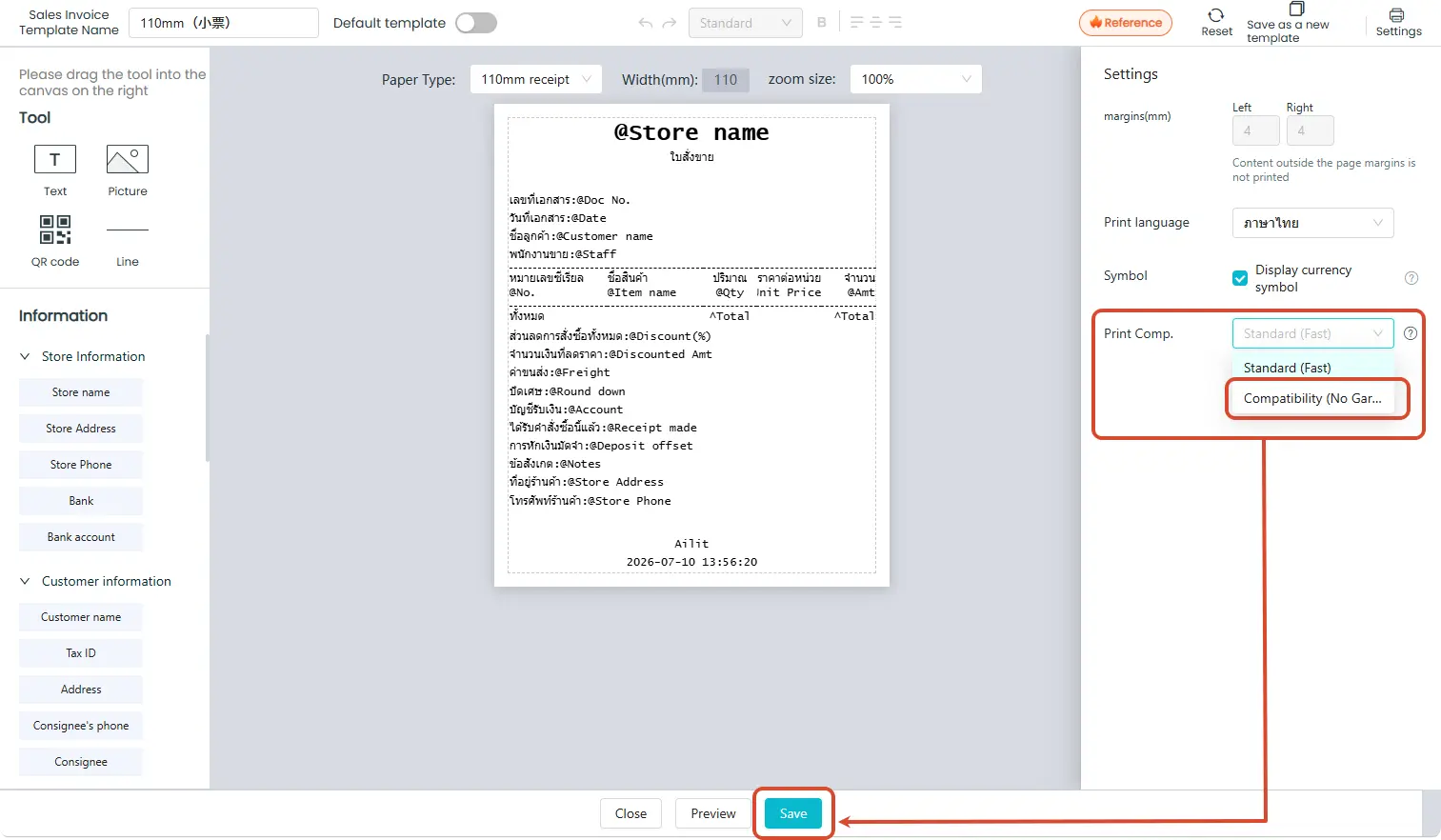
If the system’s language setting is a non‑Latin script and printing produces garbled characters, change the receipt‑printing compatibility mode to “Compatibility Mode.” Steps: Go to 【Settings】–【Print Settings】, select the receipt template, tap 【Print Comp.】, and set it to “Compatibility(No Garble).”
Clean the Print Head
If dust, paper fibers, or other debris has accumulated on the receipt printer’s print head, it can also cause garbled printing. Gently wipe the print head with an alcohol‑impregnated cloth, allow the alcohol to evaporate, then close the cover and try printing again.
Contact Printer After‑Sales Support
If none of the above steps resolve the garbled‑print issue, contact the printer’s after‑sales service for assistance.