

How to display custom product attributes on the reconciliation statement page
How to display custom Item attributes on the reconciliation statement page
Add Custom Item Attributes
Click [Item] - [Item Attributes] - [Add Item Attribute] to customize Item attributes.
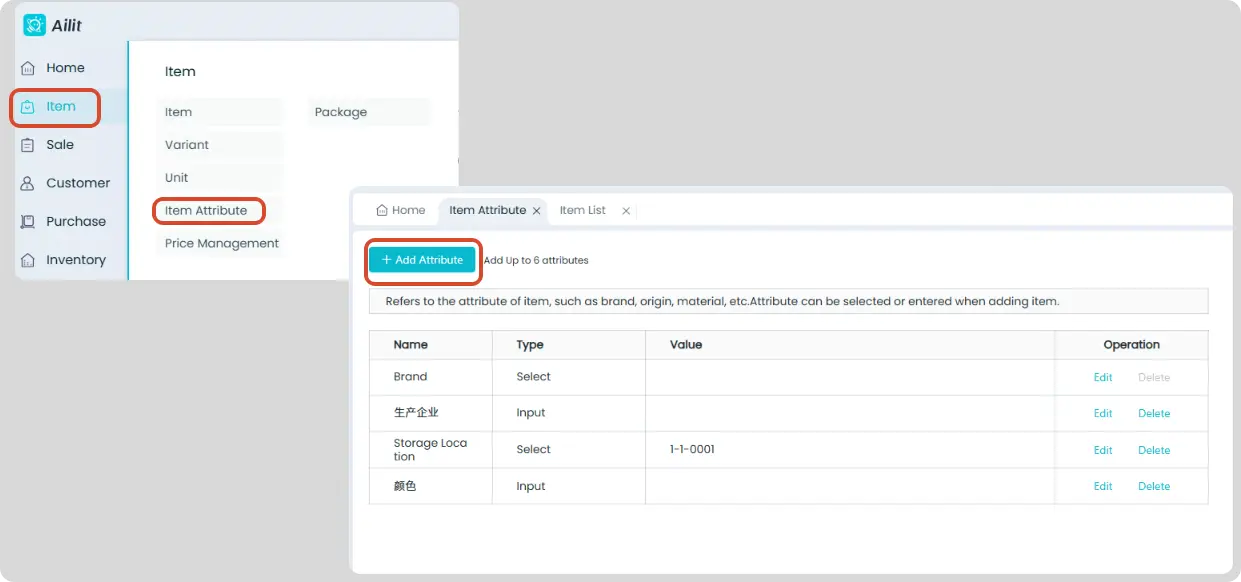
Set Item Attributes
Click [Item] - [Item], then add or edit Item to set custom Item attributes.
![新增/修改商品信息]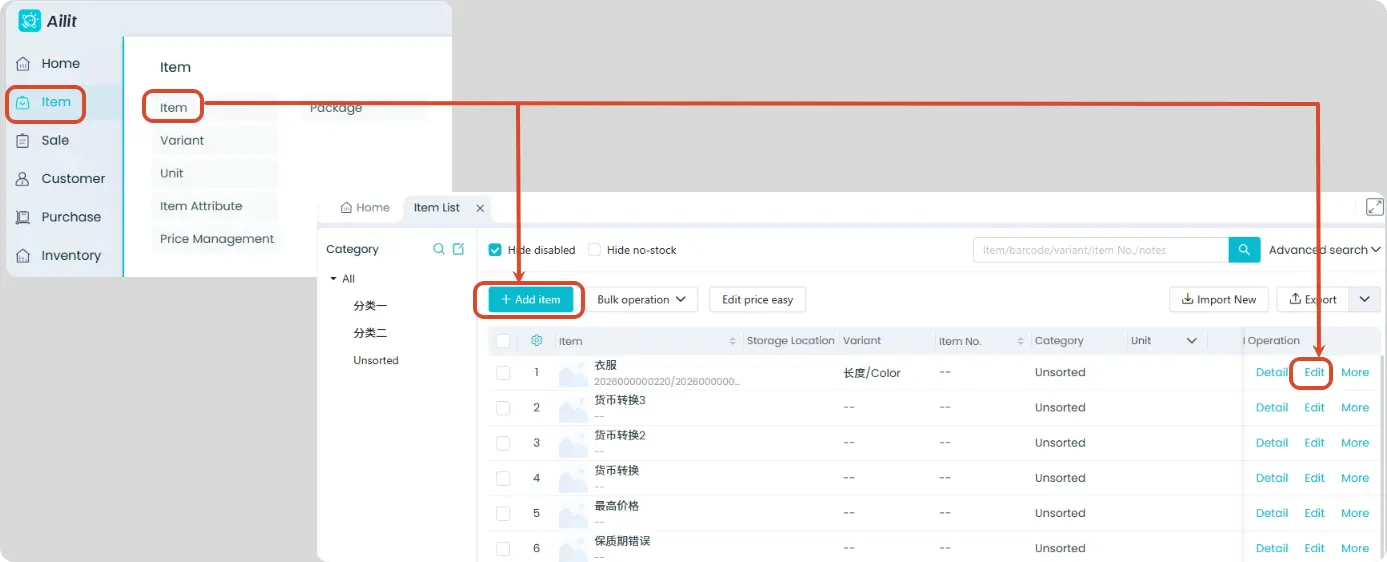
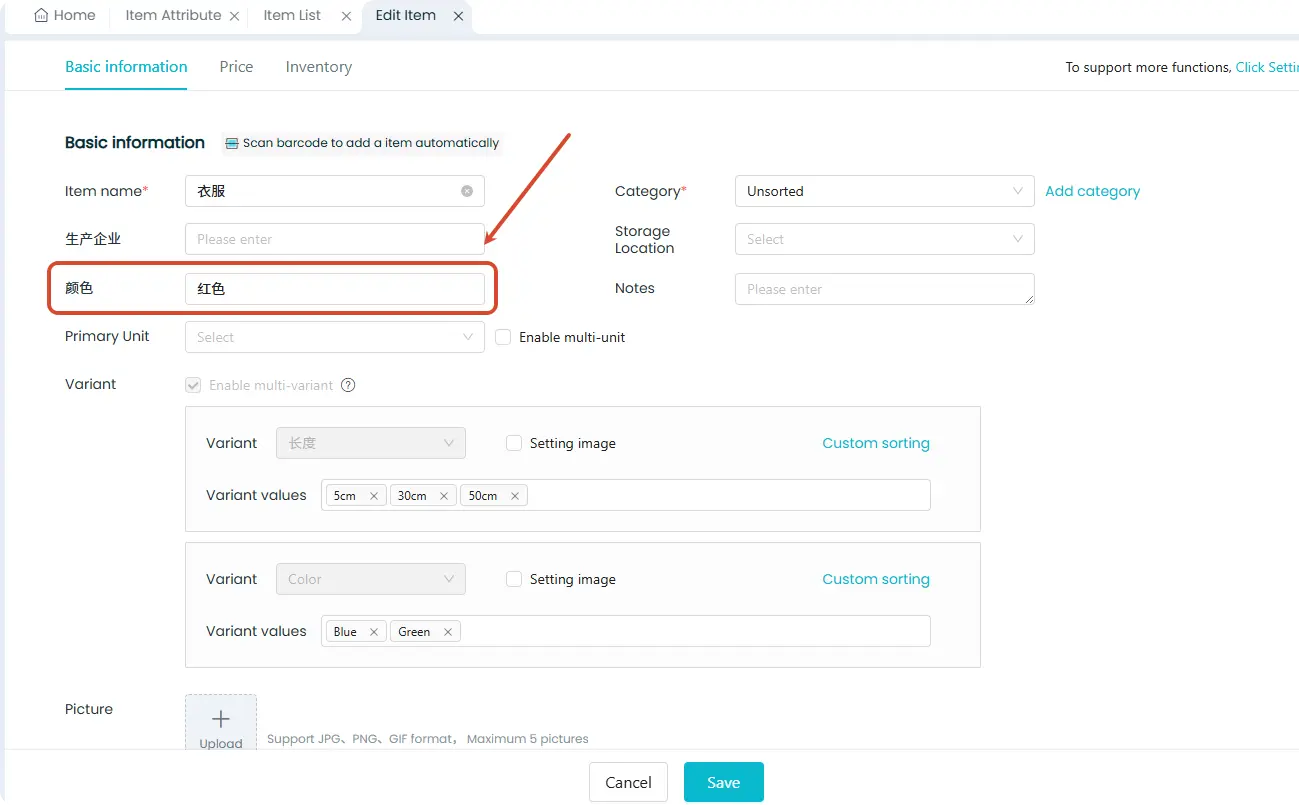
Set Reconciliation Statement to Display Item Attributes
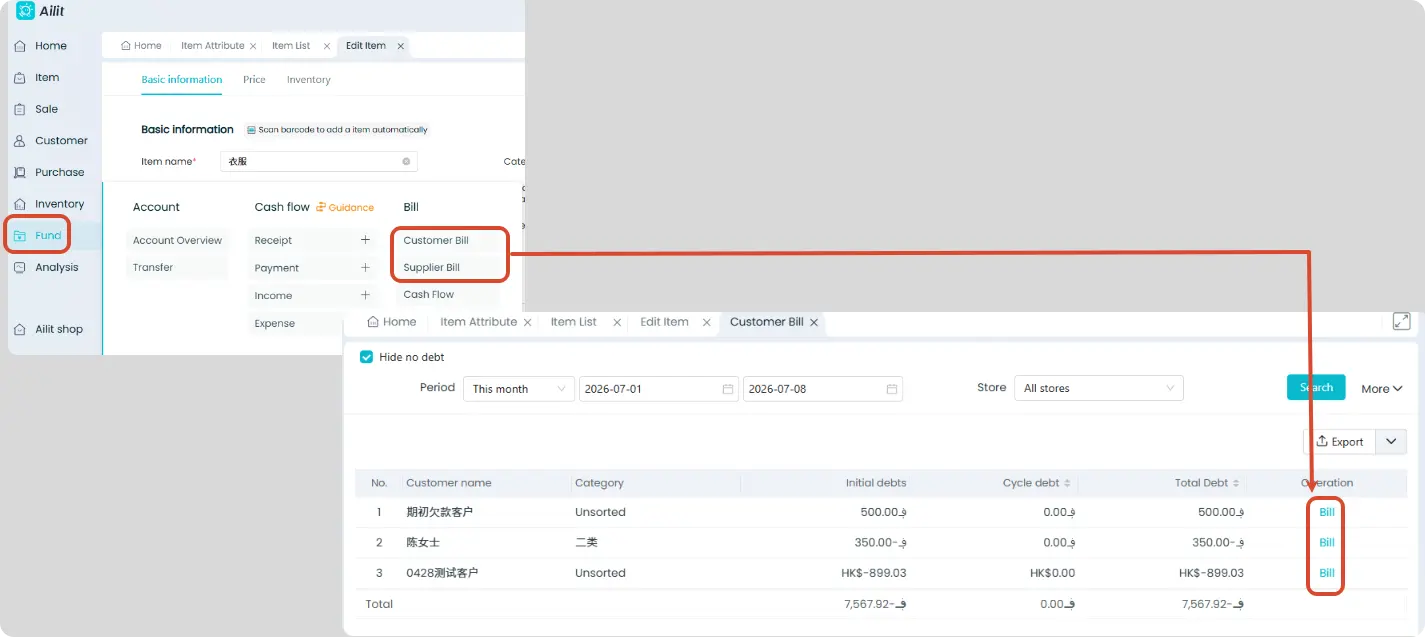
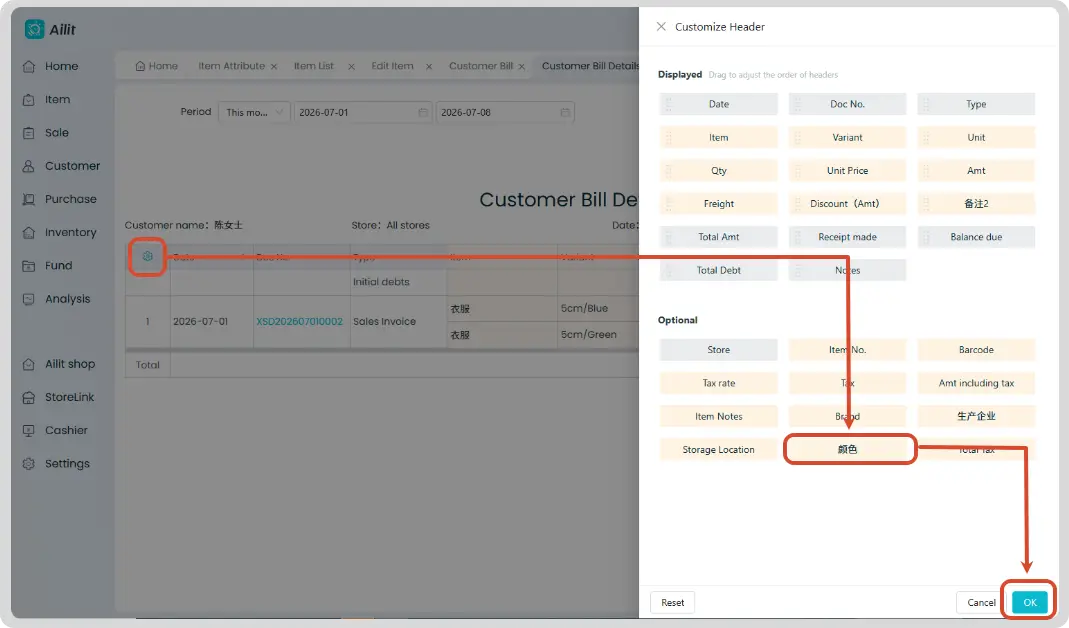
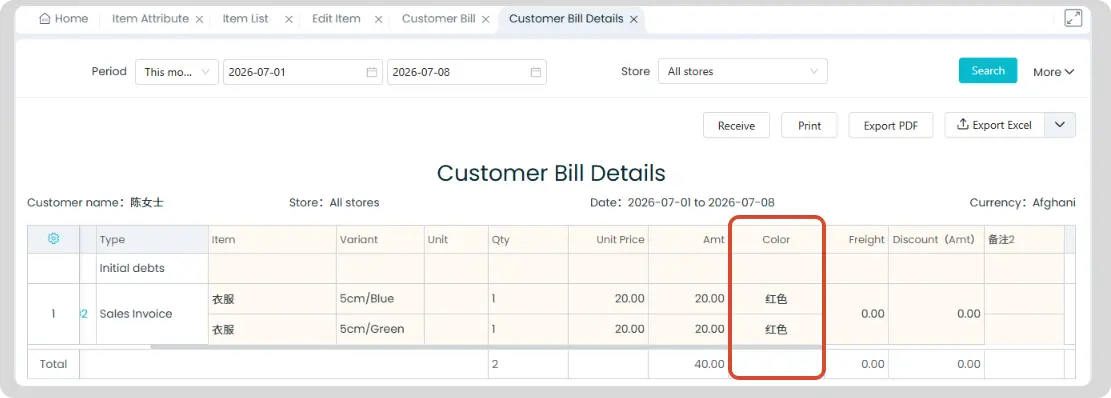
Enable custom Item attributes display on customer/supplier reconciliation statements
Click [Funds] - [Customer Bill] / [Supplier Bill] - select a specific customer and click [Bill] - click the gear icon ⚙️ in the upper left corner of the reconciliation form - add custom Item attributes - click [Save]
Export Excel tables to display Item attributes
After adding the display of Item attributes in the reconciliation statement, the exported Excel file can show custom Item attributes.
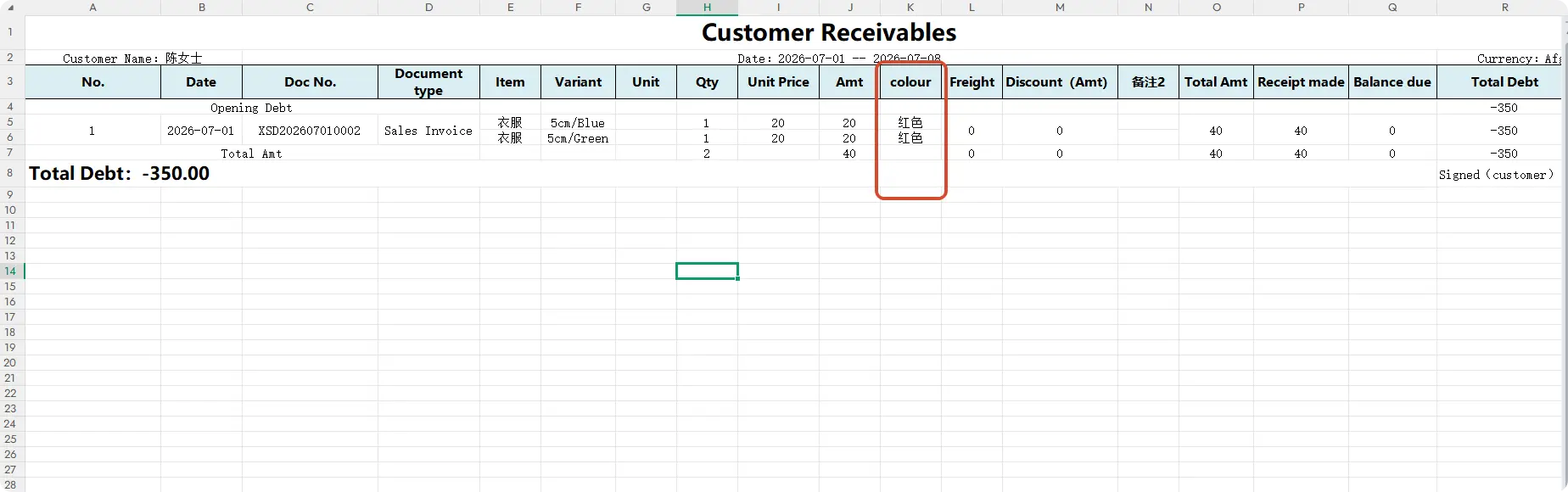
Set the reconciliation statement print template to display custom Item attributes
Click [Settings] - [Print Settings] - select the reconciliation statement template to enter the editing page - click the table - check the custom Item attributes - click [Save]
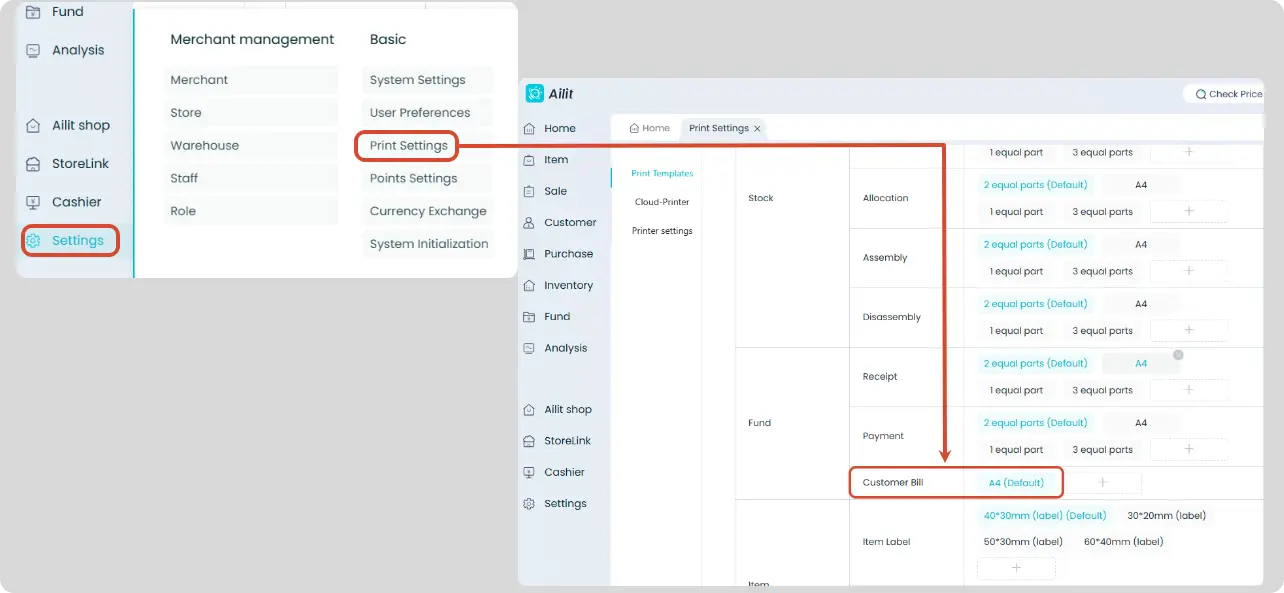
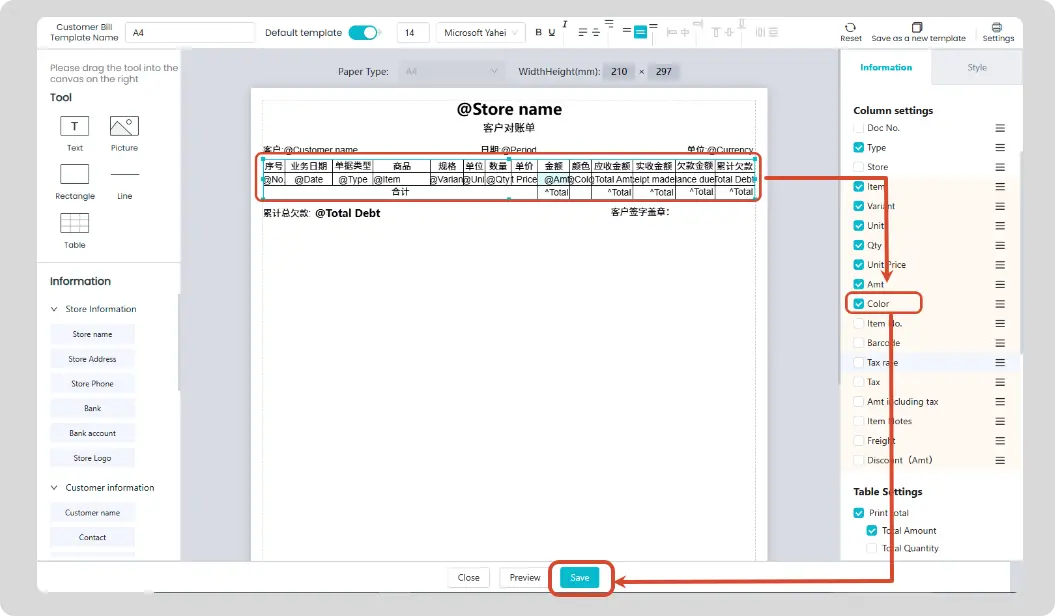
After checking the custom Item attributes and saving, you can click Preview to verify if they are displayed correctly.