

Customer Reconciliation (by Outstanding Invoices)
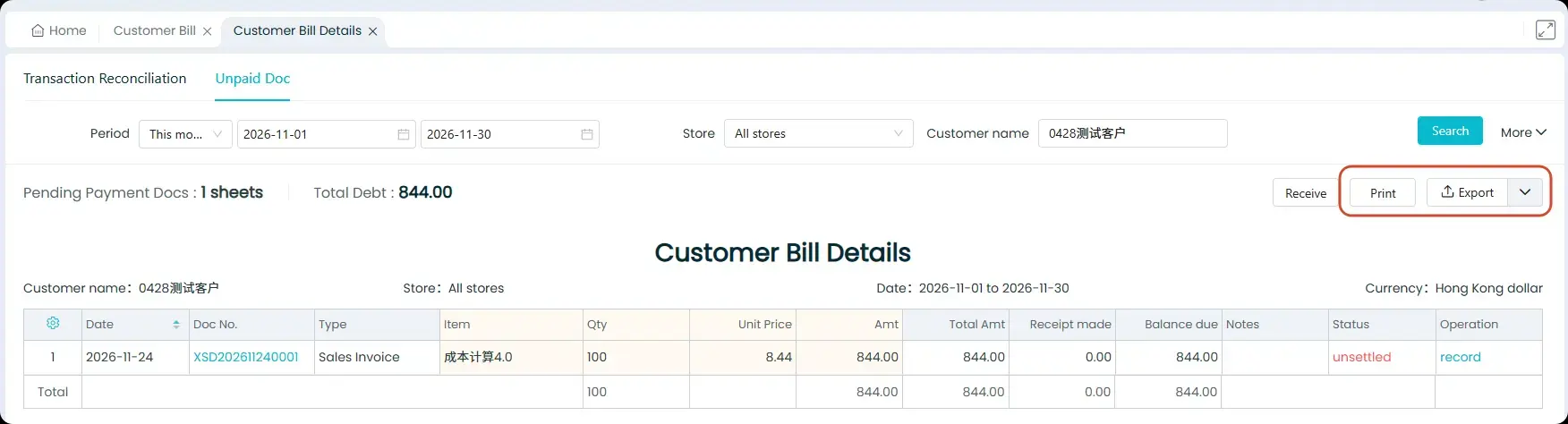
View by document which invoices a customer still owes, how much has been collected for each invoice, and the total outstanding amount. You can make payments directly or export the statement for the customer to verify.
This tab only includes sales orders and sales return orders. For checking opening balances, manual adjustments, and other transactions, please use “Transaction Reconciliation.”
Tab Descriptions
| Tab | Displayed Content | Applicable Scenario |
|---|---|---|
| Outstanding Invoices | Sales Orders, Sales Return Orders | Quickly view outstanding amounts and make payments directly |
| Transaction Reconciliation | Includes payment receipts, adjustment entries, opening balances, and all other records | Fully reconcile accounts |
Finding Documents
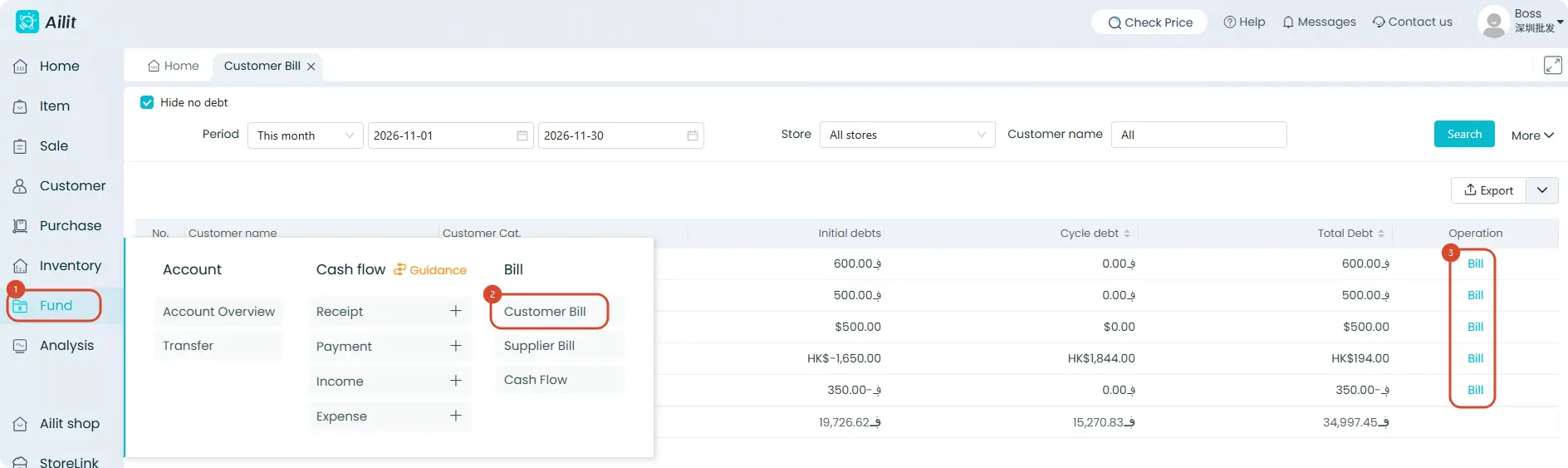
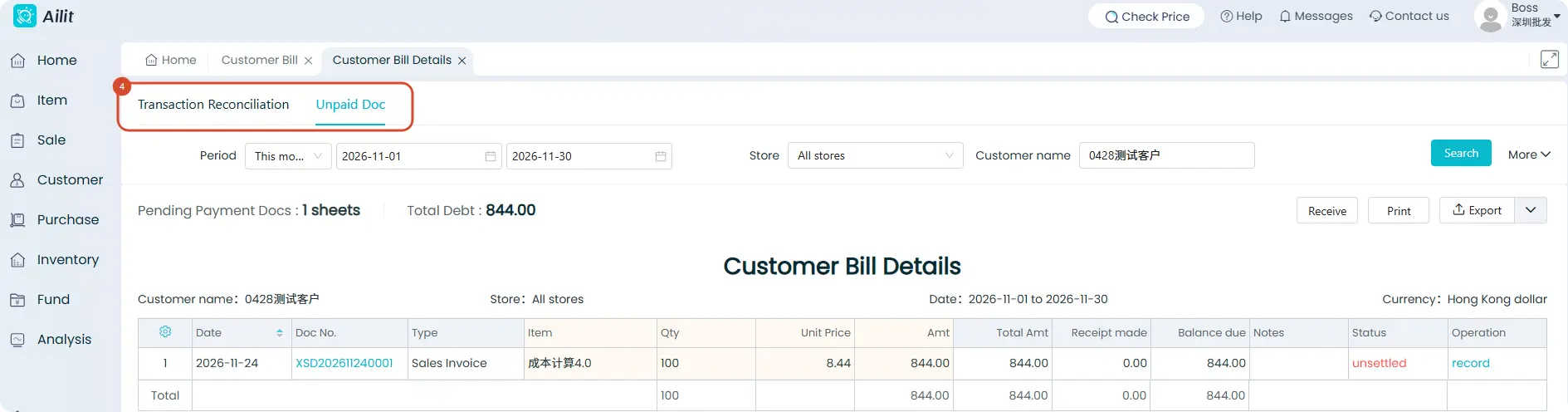
Path: [Funds] → [Customer Reconciliation] → Search for Customer → Click [Reconcile] in the Action Column → Select “Outstanding Invoices”
You can check “Show Item Details” or “Only Show Unsettled” as needed.
Understanding the Fields
| Column Name | Meaning |
|---|---|
| Amount Due | Original amount due on the document |
| Amount Received | Amount already received, including the actual amount entered on the sales order and payments made via payment receipts |
| Outstanding Amount | Amount Due − Amount Received. For return orders, this is negative, indicating a reduction in the outstanding balance |
| Status | “Settled” if the outstanding amount is 0; otherwise, “Unsettled” |
| Actions | Click “Payment History” to view the payment details for that document |
Two numbers at the top of the list:
- Pending Invoices: Number of sales orders still awaiting payment (excluding return orders)
- Total Outstanding: The amount yet to be collected within the current filter range (return orders have already been deducted)
Making Payments
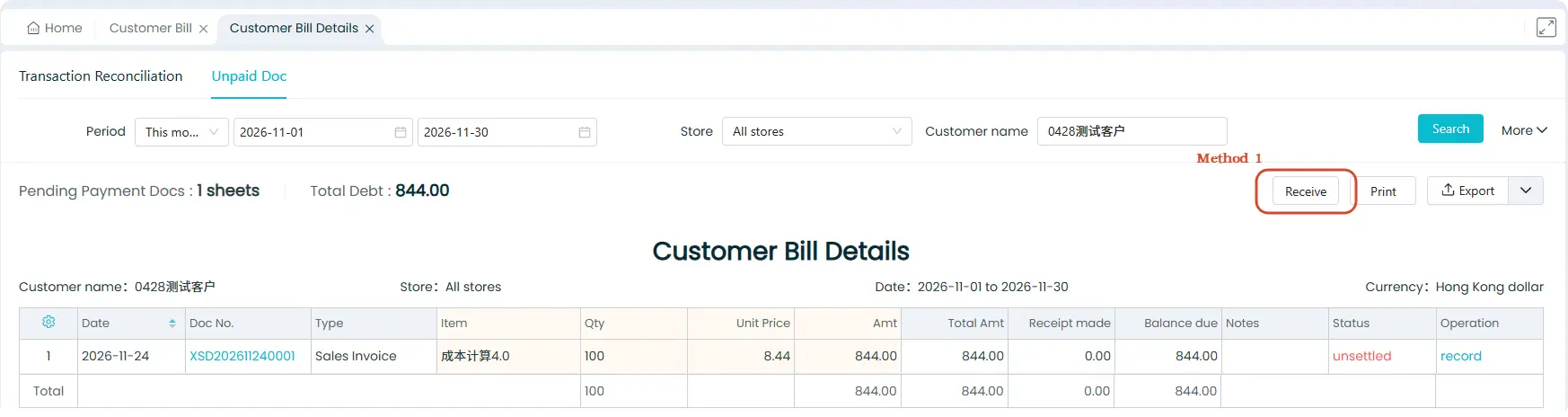
Method 1: Batch Payment
Click [Collect Payment] in the upper right corner to go to the payment receipt page, where you can select multiple documents for batch payment.
If there are multiple stores, one payment receipt can only cover the outstanding amounts from a single store; separate payment receipts must be created for different stores.
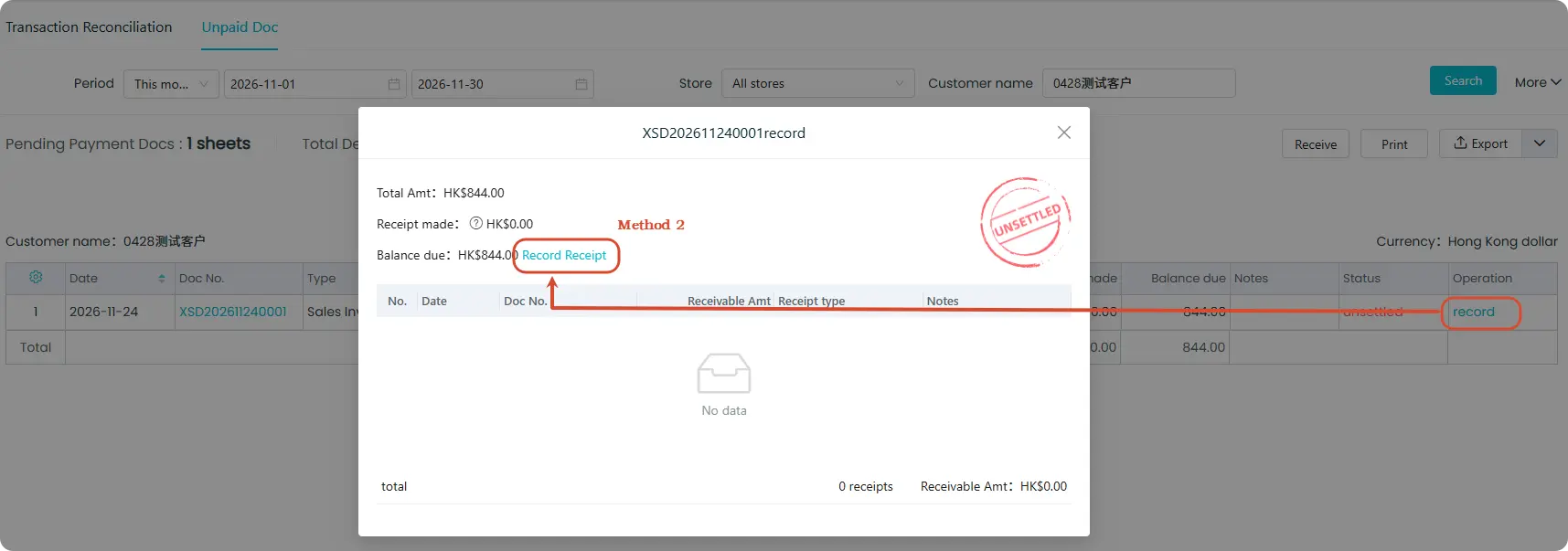
Method 2: Single Payment
Click [Payment History] on the right side of the sales order → [Final Payment] to collect payment for that specific sales order.
Printing and Exporting
Both “Print” and “Export to Excel” output based on the current filter. Outstanding invoices have a dedicated print template.
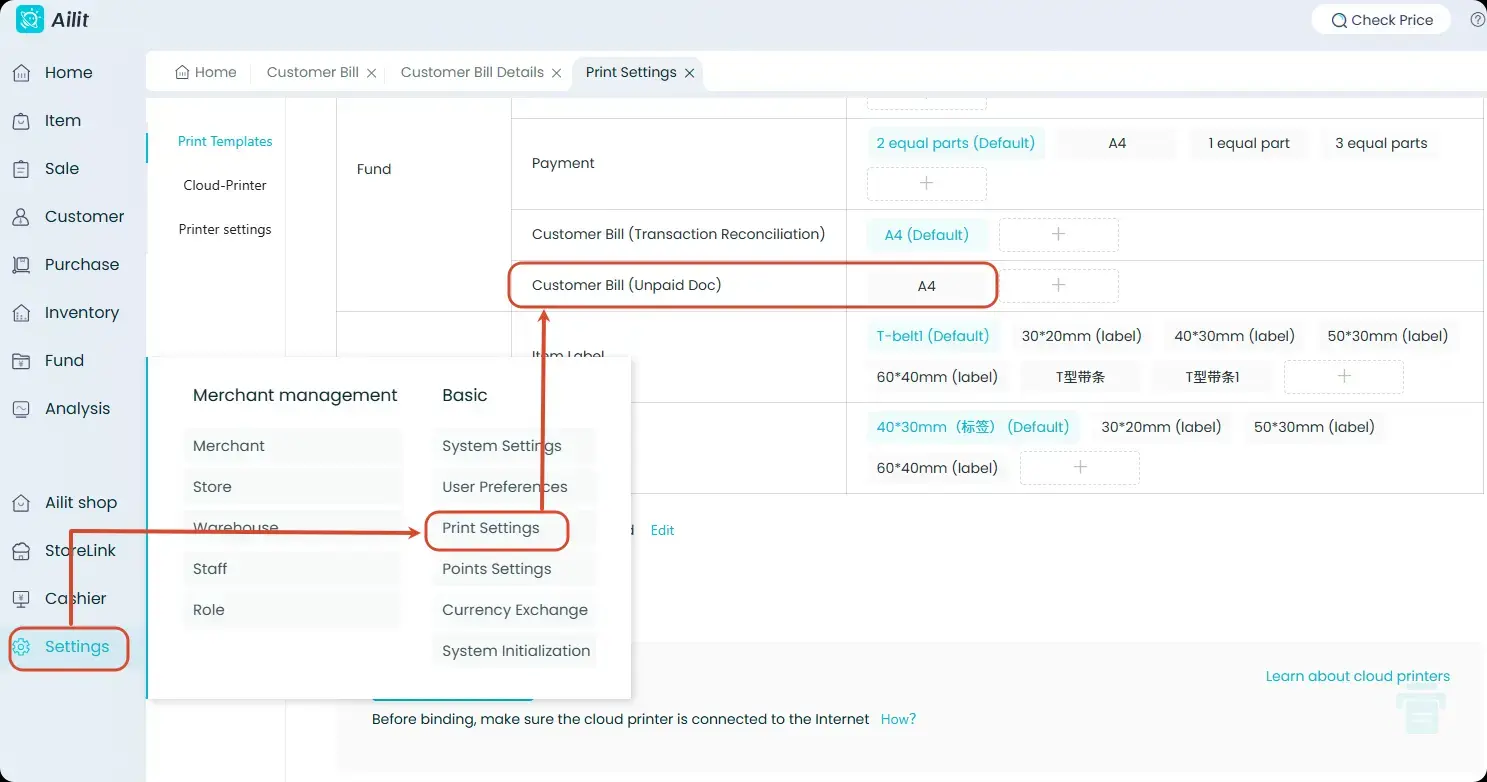
To modify the print template: [Settings] → [Print Settings] → Click the print template for Customer Reconciliation (Outstanding Invoices) → Save after making changes
Frequently Asked Questions
Why does the number of “Pending Invoices” at the top not match the number of unsettled rows in the list?
“Pending Invoices” counts only sales orders; return orders have an outstanding amount (negative), but they are not counted as individual invoices—they only contribute to the total deduction.
Why is the total outstanding amount in “Outstanding Invoices” different from the cumulative outstanding in “Transaction Reconciliation”?
“Outstanding Invoices” only calculates sales and return orders; “Transaction Reconciliation” also includes payment receipts, adjustment entries, opening balances, and all other records.
The return order shows a negative outstanding amount—do I still need to collect payment?
Yes. You can enter a negative amount in the “Amount Received” field on the return order, or include it when creating a payment receipt (the total amount on the payment receipt must be greater than zero).
Related Reading: For a complete reconciliation of transactions, switch to “Transaction Reconciliation.”