Batch Number and Expiration Date Management Guide
Feature Overview
The batch and expiration date management feature is designed to help you standardize inventory management for products such as food and pharmaceuticals that have strict expiration or batch control requirements. By enabling batch or expiration date management for your products and entering the corresponding information during inbound and outbound transactions, you can clearly track the inventory status of different batches/expiry dates, achieving more precise inventory control.
Key Concepts:
- Batch: The production or purchase batch number of a product, used to distinguish between different batches of the same item in inventory.
- Expiration Date: The valid period of a product under normal storage conditions.
- Production Date: The date on which the product was manufactured or left the factory; this serves as the starting point for calculating the expiration date (the expiration period begins the day after the production date).
Main Capabilities:
- Expiry Management: Set the expiration date for products; the system automatically calculates the expiry date and can issue alerts to help you avoid losses from expired goods.
- Batch Differentiation: Distinguish between different batches of products in inventory, allowing you to select specific batches when creating sales orders, making it easier to implement FIFO (first-in, first-out) and other inventory management strategies.
- Inventory Inquiry: Provides dedicated "Expiry Date Inquiry" and "Batch Inquiry" pages to centrally view expiry and batch details for all managed products.
Enabling the Feature Globally
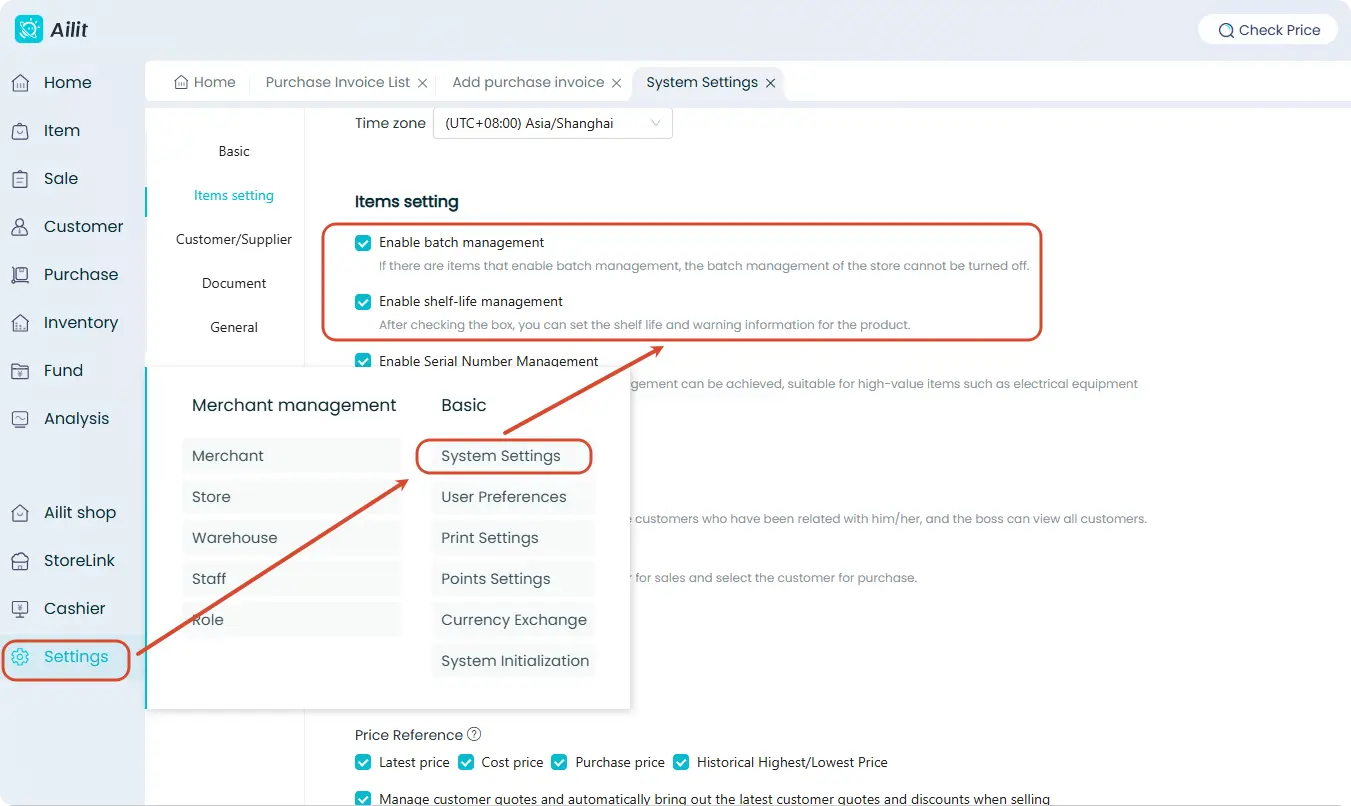
Before using this feature, you need to enable it in the system settings.
Procedure: Go to 【Settings】 - 【System Settings】 - 【Product Settings】 - 【Enable Batch/Expiry Date Management】
Depending on your business needs, check either "Enable Batch Management" or "Enable Expiry Date Management." Once enabled, the relevant functions will be available for use in product management and sales order creation.
Enabling Management for Products
After enabling the feature globally, you need to activate batch or expiry date management for individual products.
Enabling for a Single Product
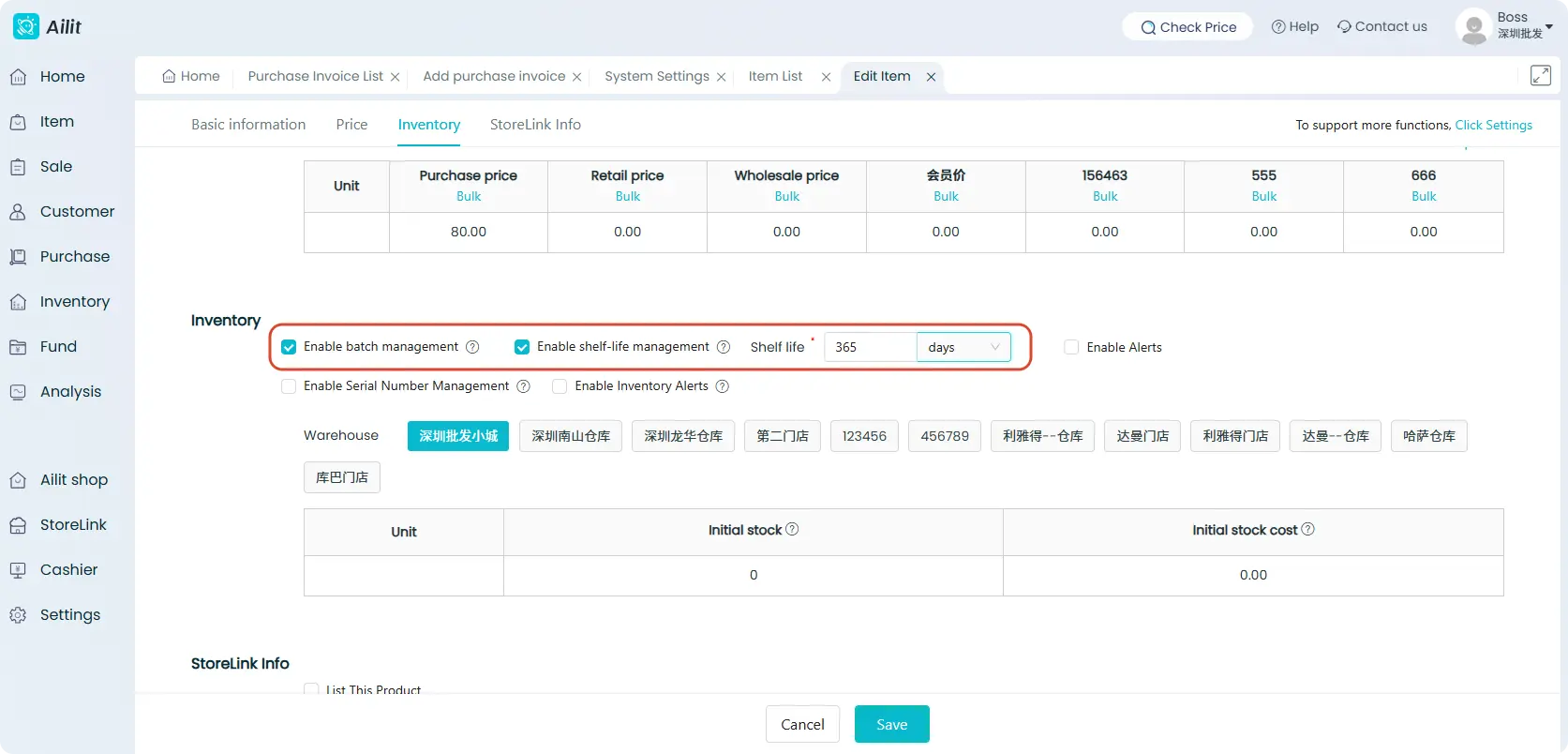
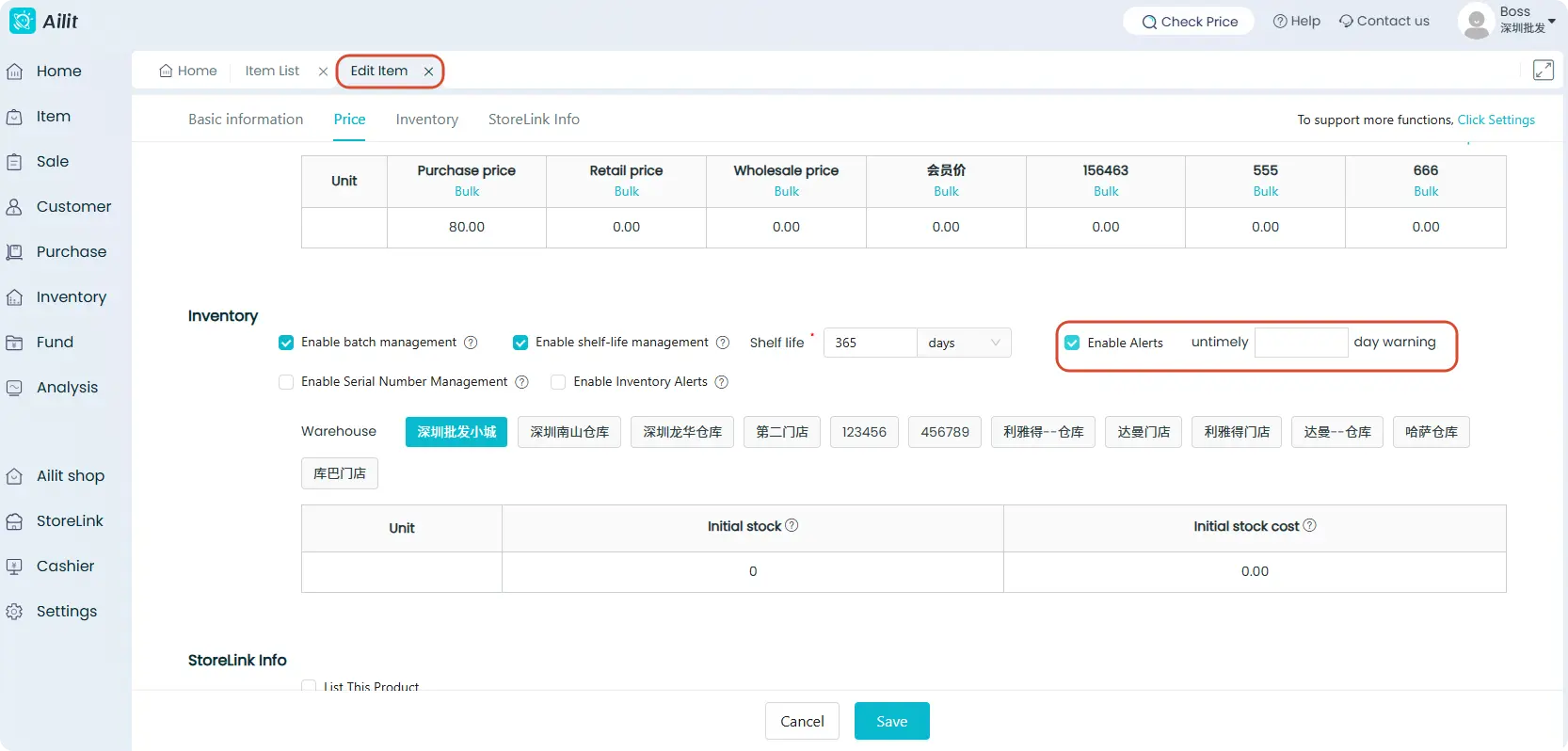
Procedure: Go to 【Products】 - 【Products】 - 【Add/Edit Product】 - 【Product Inventory】 - Check 【Enable Batch/Expiry Date Management】
(1) Enable Batch Management: Once enabled, a batch number must be entered for every inbound and outbound transaction involving this product, and negative inventory outflows are not permitted. (2) Enable Expiry Date Management: Once enabled, a production date must be entered or selected for every inbound and outbound transaction. You also need to set the product's expiration period (a positive integer) and its unit (days/months/years).
Enabling for Multiple Products
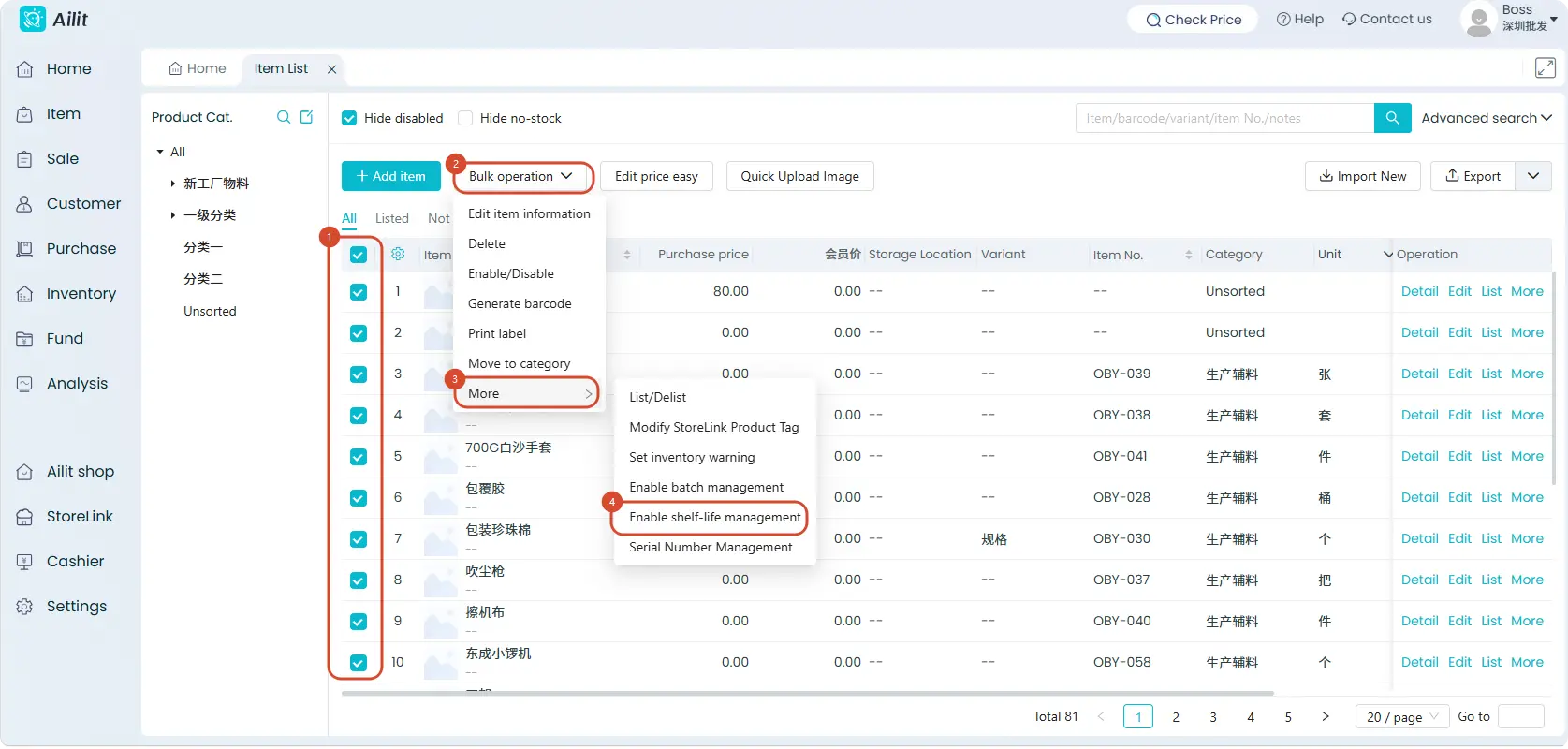
Procedure: Go to 【Products】 - 【Products】 - Select or filter products - 【Bulk Actions】 - 【Enable Batch/Expiry Date Management】
This function allows you to quickly enable management and set expiration dates for multiple similar products (such as all beverages), greatly improving efficiency.
Important Concepts and Settings
Expiration Date Calculation Rules
💡 Core Rule:
- Units: The expiration period can be set in days, months, or years. When selecting "months" or "years," the system calculates based on calendar months/years, without accounting for differences in the number of days per month (e.g., 28 days in February) or leap years.
- Start Date: The expiration period is calculated starting from the day after the production date. For example, if the production date is January 1st, the first day of the expiration period begins on January 2nd.
Setting Expiry Date Alerts
On the product editing page or during bulk activation, you can check 【Expiry Date Alert】 and specify the number of days in advance for the alert.
The system will display the number of soon-to-expire items in 【Home】 - 【Important Reminders】 - 【Expiry Date Alerts】 (https://www.zhihuiji.cn/help/doc/3345), helping you take timely action.
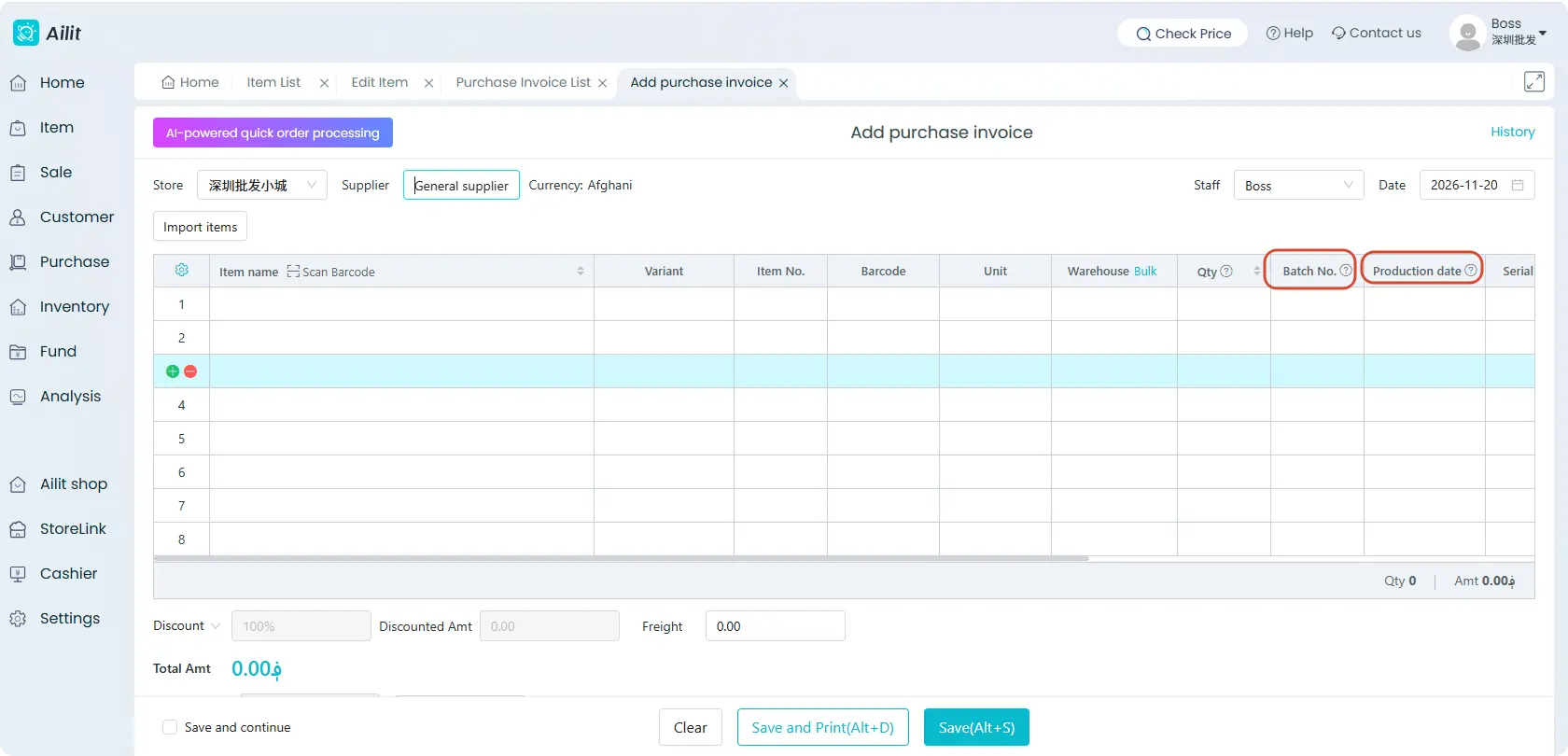
Entering Production Dates and Batch Numbers
Production dates and batch numbers must be entered during 【Inbound Transactions】.
If the same batch number corresponds to different production dates, they must be entered separately to ensure the accuracy of inventory records.
Inquiry Functions
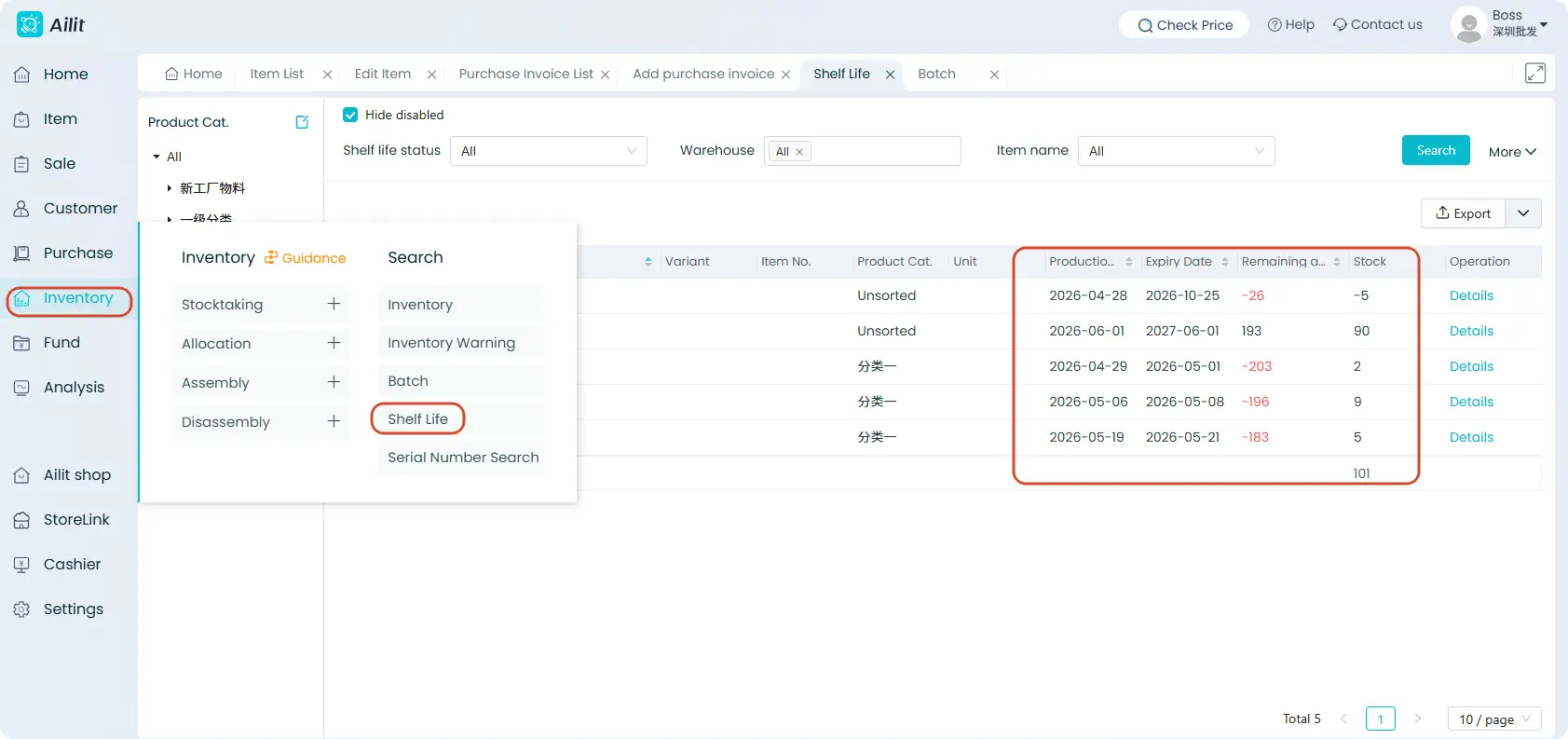
Expiry Date Inquiry
Procedure: Go to 【Inventory】 - 【Expiry Date Inquiry】
Here you can clearly view information on all products with expiry date management enabled and with expiry date data recorded in current inventory, including production date, expiry date, remaining days until expiry, and current stock levels, making it easy to make quick decisions and handle near-expiry items. Click "Details" to see the distribution of stock across different warehouses.
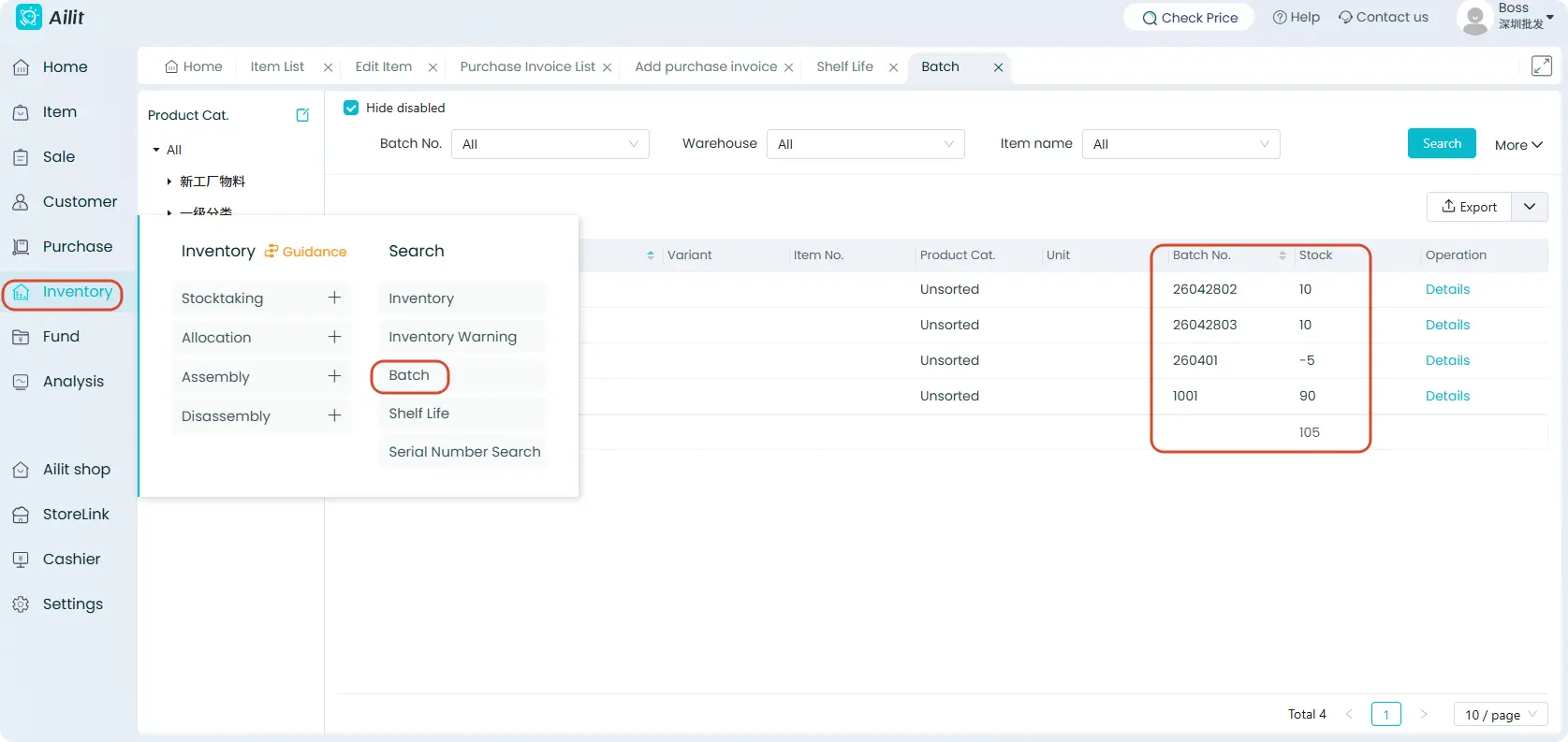
Batch Inquiry
Procedure: Go to 【Inventory】 - 【Batch Inquiry】
Here you can query information on products with batch management enabled, including batch numbers and inventory levels. Click "Details" to see the distribution of stock across different warehouses.
Disabling and Adjusting Management Features
When you no longer need to manage certain products by batch or expiry date, you can disable these features.
⚠️ Important Reminder Before Disabling:
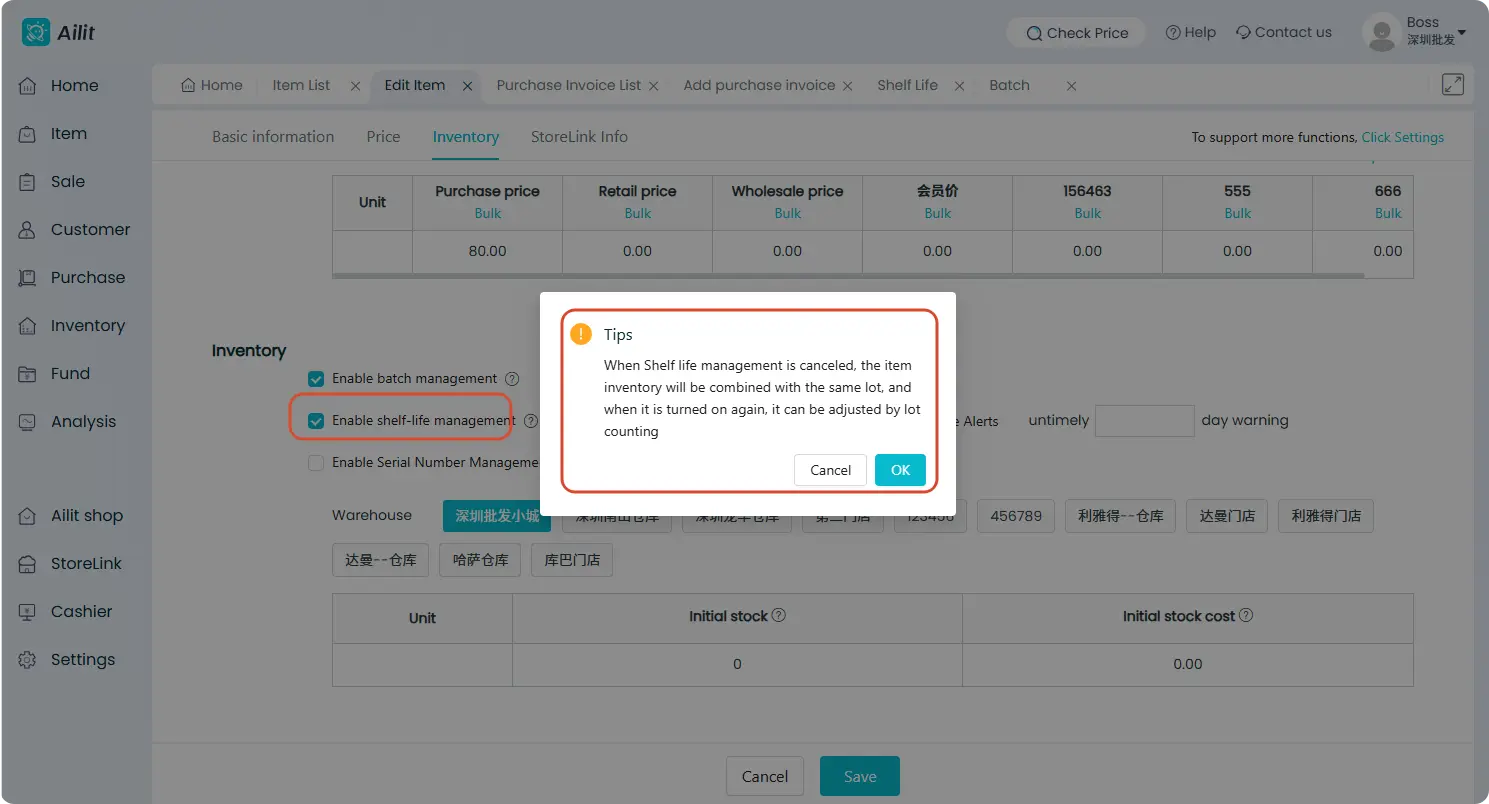
- After disabling, the product's inventory will no longer differentiate by batch/production date; the system will consolidate all inventory.
- If you re-enable the feature later, you will need to perform a [batch inventory count] (https://www.zhihuiji.cn/help/doc/3343) to reorganize and reconcile inventory data.
Disabling Management for a Single Product
Procedure: Go to 【Products】 - 【Products】 - Locate the product - 【Edit】
In the 【Product Inventory】 section, uncheck 【Enable Expiry/Batch Management】. A confirmation prompt will appear; carefully read the instructions regarding inventory consolidation, then click 【Confirm】 and save the product.
Disabling Expiry Date Management for All Products
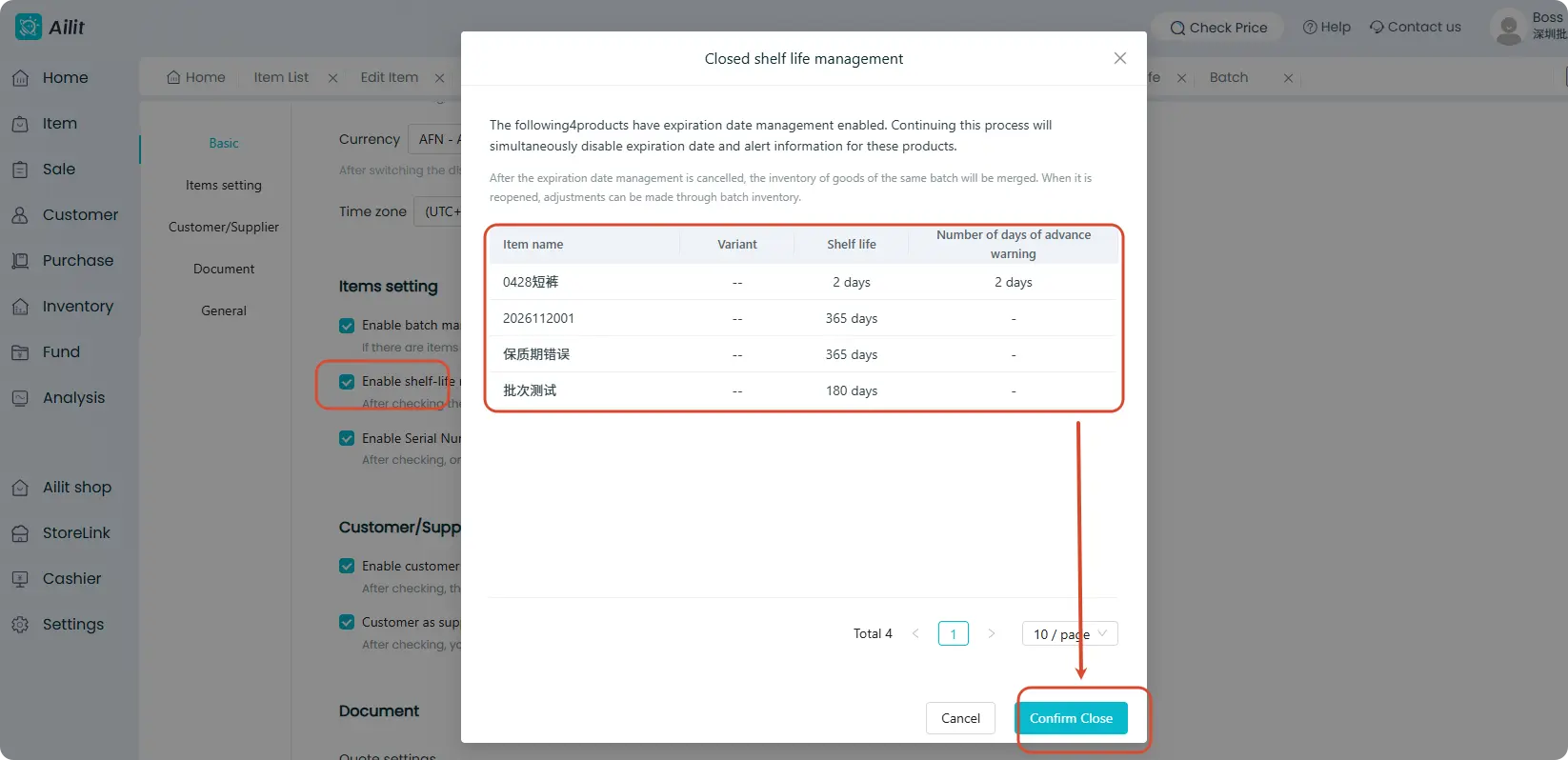
Please note: This operation only applies to disabling "expiry date" management for all products. "Batch" management must be disabled individually for each product.
This action will disable expiry date management for all products currently using this feature at once.
Procedure: Go to 【Settings】 - 【System Settings】 - 【Product Settings】
On the settings page, uncheck 【Enable Expiry Date Management】. The system will display a detailed list of all products whose expiry date management will be disabled. Carefully review the list, then click 【Confirm Disable】, and follow the second confirmation prompt to complete the process.