How to use AI for fast invoice Creation
How to Use AI for Fast Order Creation
In Ailit, sales orders can leverage the AI‑powered quick order‑creation feature to batch‑import product information into the sales document. This can be done in two ways: “Text Recognition” and “Excel Recognition.”
Text Recognition
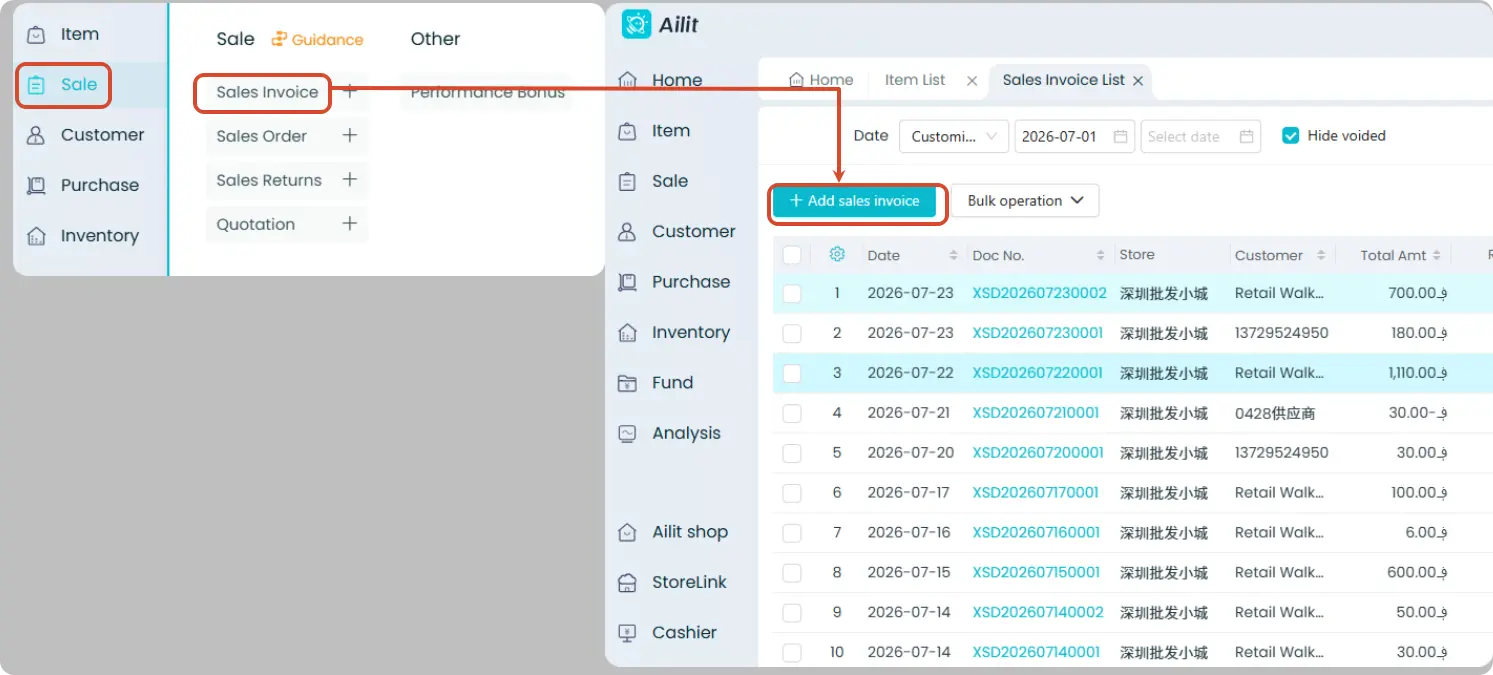
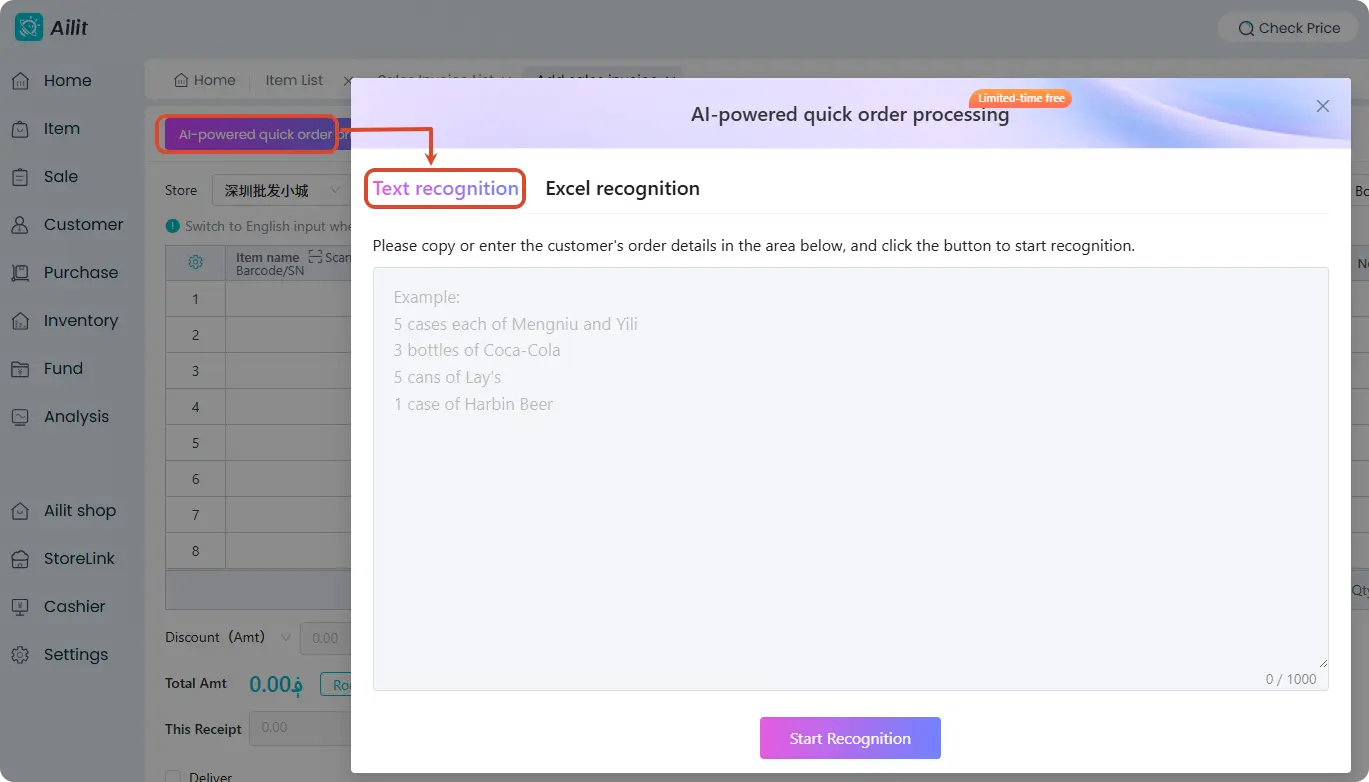
Steps: [Sale] → [Sales invoice] → [Add sales invoice] → Tap the upper‑left corner [Al-powered quick order processing] → [Text recognition] → Enter or copy the product name and quantity → [Start Recognition] → [Document Entry]
For products with multiple specifications, you don’t need to input the specification values; after recognition, you’ll need to manually select the desired specification.
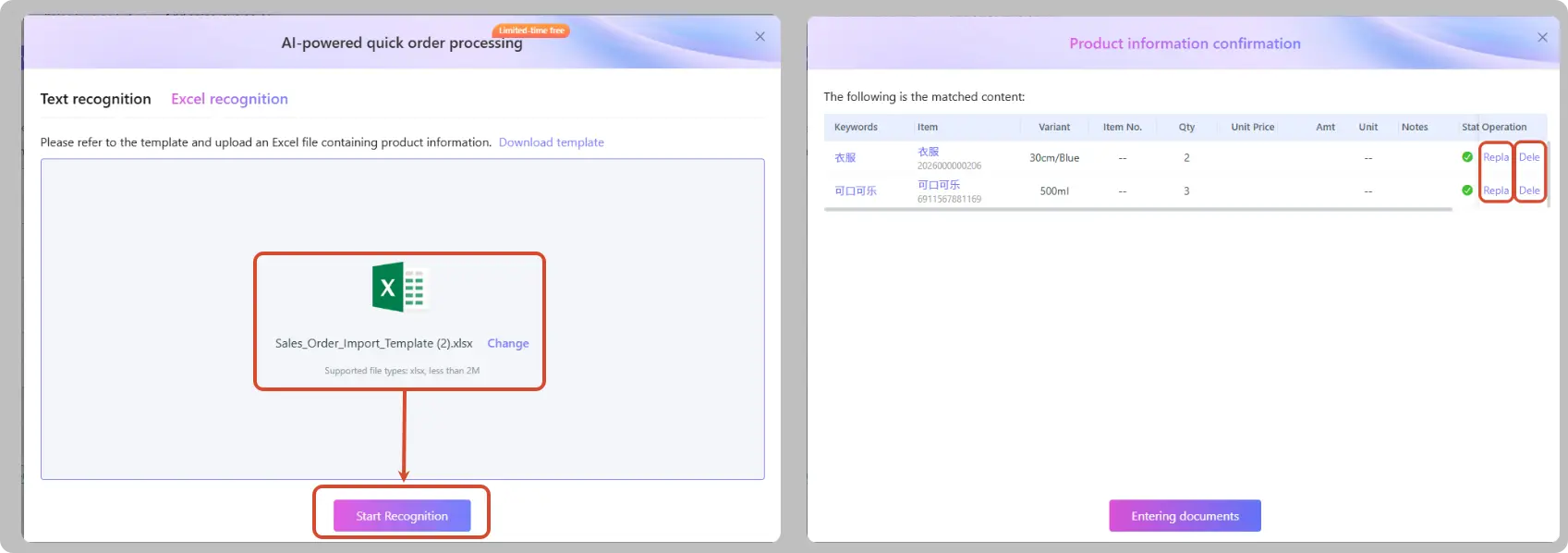
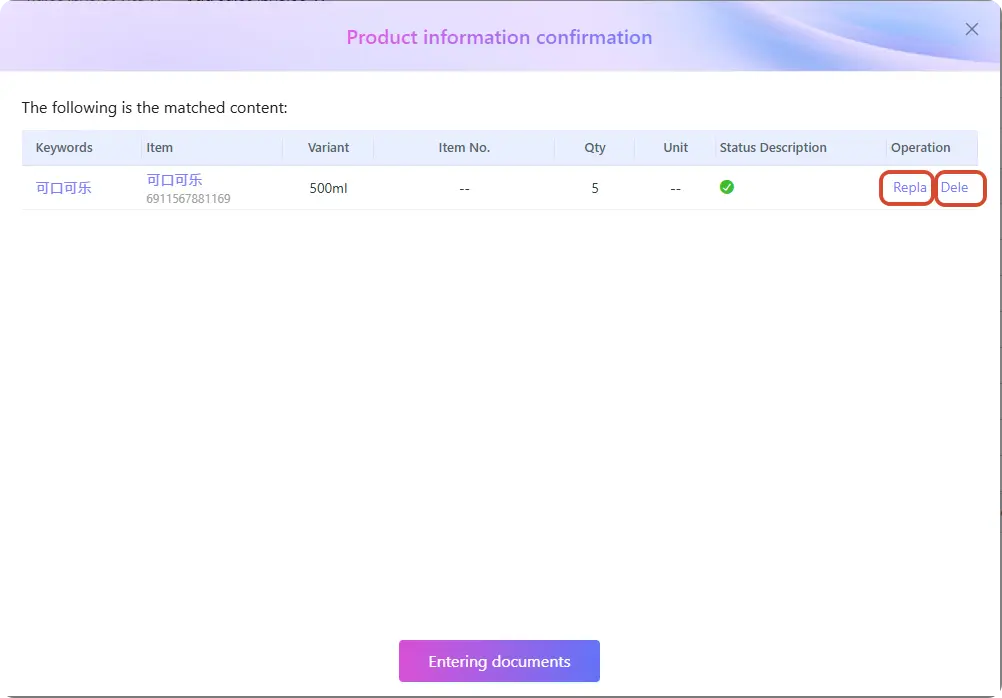
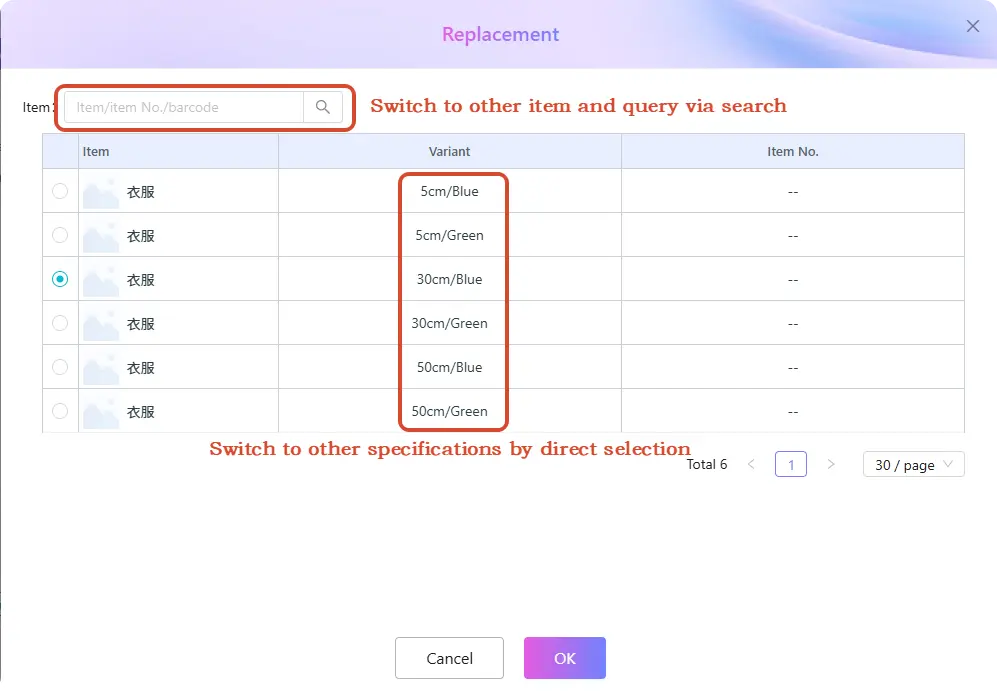
Once recognition is successful, you can replace or delete the recognized items. For multi‑specification products, replacing an item will by default bring up a list of all specification values, or you can use search to find and replace with other products.
Excel Recognition
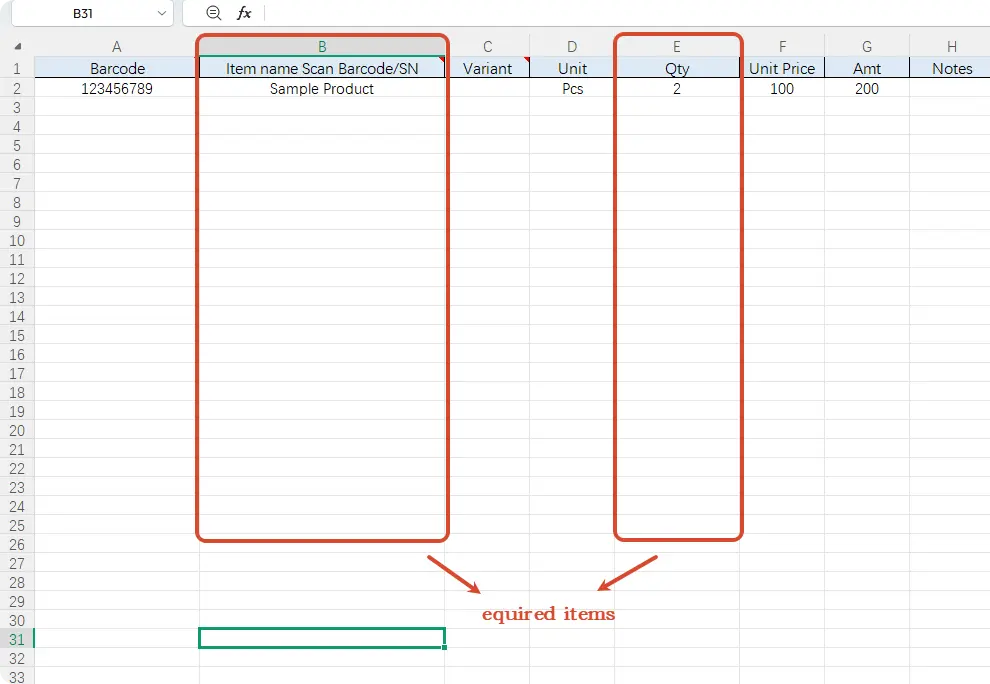
Steps: [Sale] → [Sales invoice] → [Add Sales invoice] → Tap the upper‑left corner [Al-powered quick order processing] → [Excel recognition] → [Click to Download Template] → Fill in the product information in the downloaded template and save it → Return to the system → [Click or Drag to Upload File] → Select the edited template and click [Start recognition] → [Document Entry]
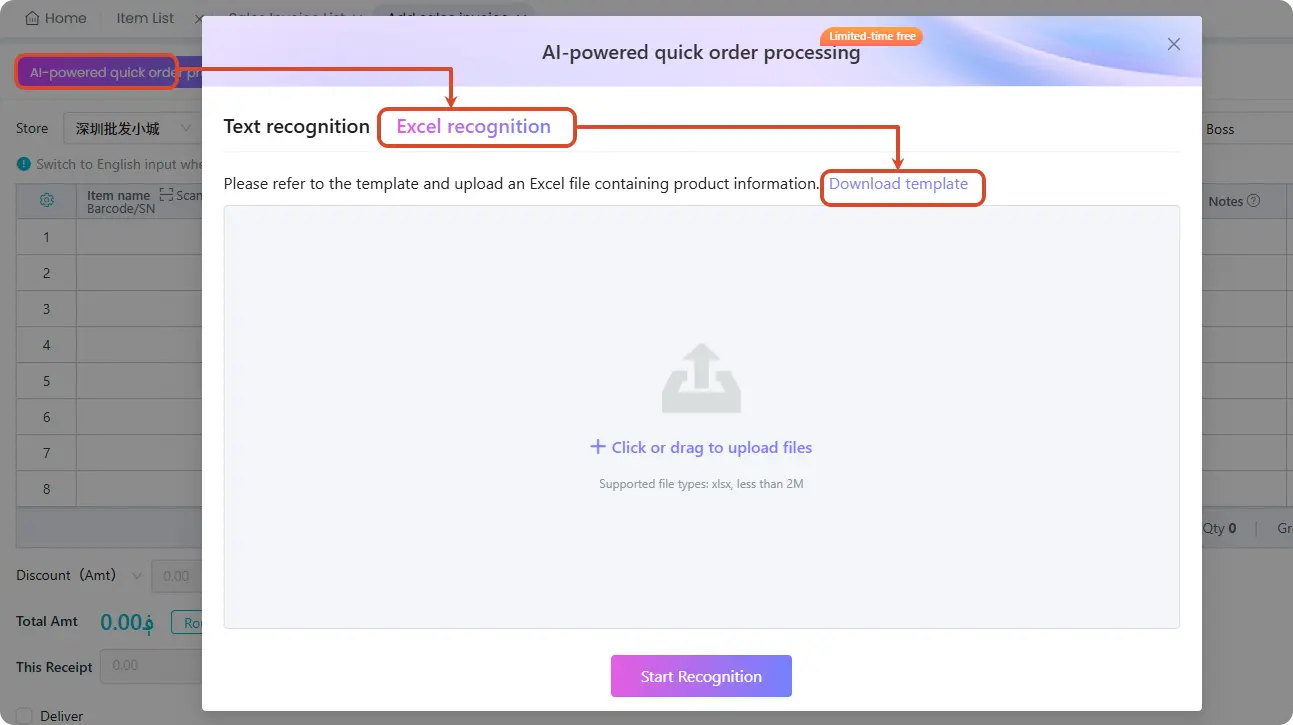
In the Excel spreadsheet, the product name and quantity are required fields. For multi‑specification products, you can enter the specification values; other attributes are optional.